
Blogs

Shubhankar Soni
[UPDATE 2026]
Please make sure to read the update and then continue the article.
Cassandra proactively releases new versions, and older version mentioned later in the article (v4.0.11) is no longer available
The latest version can be downloaded from here: https://cassandra.apache.org/_/download.html
As of this month[Feb, 2026], the latest available cassandra version is v5.0.6 which is compatible with both Java11 and Java17, we will use Java17
https://cassandra.apache.org/doc/latest/cassandra/installing/installing.html
Glowroot central version to use v0.14.4, which can be found here:
https://github.com/glowroot/glowroot/releases/tag/v0.14.4
Why we decided to setup Java17 and not Java11?
Since, the above mentioned Glowroot central version v0.14.4 is only compatible with Java17+ (always check release notes of these versions.)
It is always a good practice to check the compatibility matrix of Cassandra, Java and Glowroot Central Collector and use those versions which have common Java version compatibility.
In nutshell, for now use
- Cassandra version - v5.0.6
- Java - 17
- Glowroot Central - v0.14.4
The setup steps are similar as mentioned later in the article, only the versions are changed.
Original article starts now
It is critical to have the correct monitoring tools in the right places while debugging Performance Bottlenecks in Production/Non-Production Environments. Glowroot is a strong open-source APM solution that is simple to set up and operate. There are different modes of setting up Glowroot i.e.
- Glowroot as Agent
- Glowroot as Central Collector
In this blog, we'll go through how to configure Glowroot as a Central Collector and use Collector agents deployed on Liferay to collect data and deliver it to Glowroot central.
Pre-Requisites:
Separate VM/Server dedicated to glowroot.
Regular OS User preferably glowroot.
JAVA_HOME set for OS user created above (glowroot). In this blog Azul JDK11 is used.
Cassandra 3.1 or later will be used as Database for Glowroot Central.
Glowroot Central and Cassandra DB will be installed on Same server.
H/w Recommendations:
The following suggestions are not official, but rather based on experience.
- CPU: 8 Cores
- Memory/RAM: 8/16GB
- Storage: 100GB
Architecture Diagram:

Some Advantages:
- Does not use Liferay's JVM to run, hence it does not interfere with Liferay's JVM operation and places little to no impact on Liferay's JVM.
- Because Glowroot central is installed on a different VM/server, it does not consume and hinder the Liferay server's OS resources, which is not the case when Glowroot as Agent is installed on the Liferay server.
Download and Install JDK:
Login via glowroot user in Glowroot server/VM.
Download any jdk11 ( here Azul jdk11 is used)
Go to /home/glowroot/ directory and open .bash_profile or .bashrc and add the jvm path like below
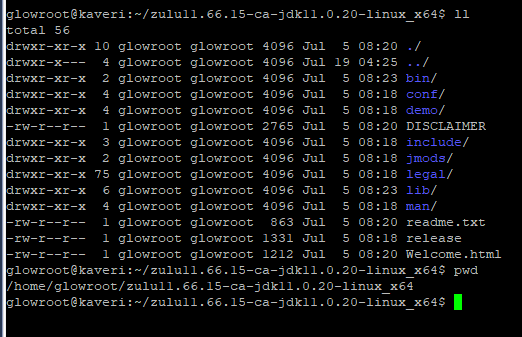
export JAVA_HOME=/home/glowroot/zulu11.66.15-ca-jdk11.0.20-linux_x644
export PATH=$JAVA_HOME/bin:$PATH

4. Save and Exit the above file.
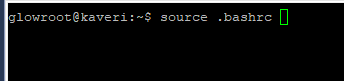
5. Now run source .bashrc command to reflect the changes.
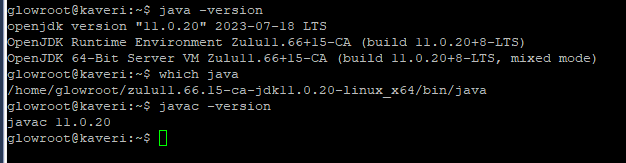
6. Once done check Java as per the below snapshot.
Download & Install Cassandra
Go to https://dlcdn.apache.org/cassandra/4.0.11/apache-cassandra-4.0.11-bin.tar.gz and download Cassandra binary file and paste it in the /home/glowroot/ directory.
Unzip the binary file downloaded above in the same directory /home/glowroot/
(use tar -xvzf apache-cassandra-4.0.11-bin.tar.gz to unzip)
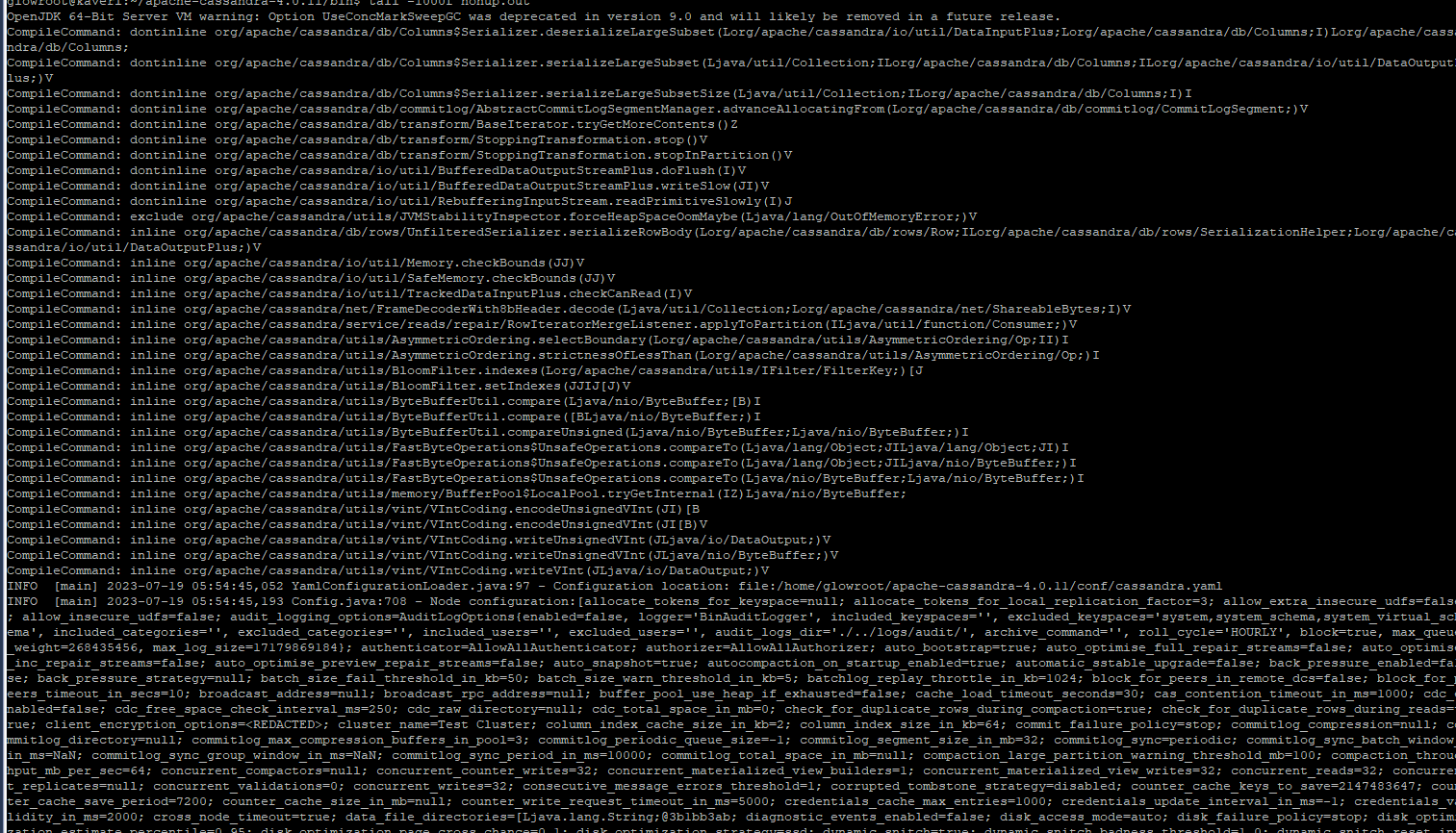
Go to /home/glowroot/apache-cassandra-4.0.11/bin and execute below command to start cassandra db
nohup ./cassandra &
Cassandra will start running in some time.
Download & Install Glowroot Central:
Go to https://github.com/glowroot/glowroot/wiki/Central-Collector-Installation and download the available glowroot central zip file.
Copy the downloaded zip file to the server in directory /home/glowroot/ and unzip.
After unzipping go inside the glowroot-central/ directory.
Now, start Glowroot central by running below command
nohup java -jar glowroot-central.jar &
Now open the browser and hit http://GlowrootIP:4000 (replace GlowrootIP with the IP address of the Glowroot server)


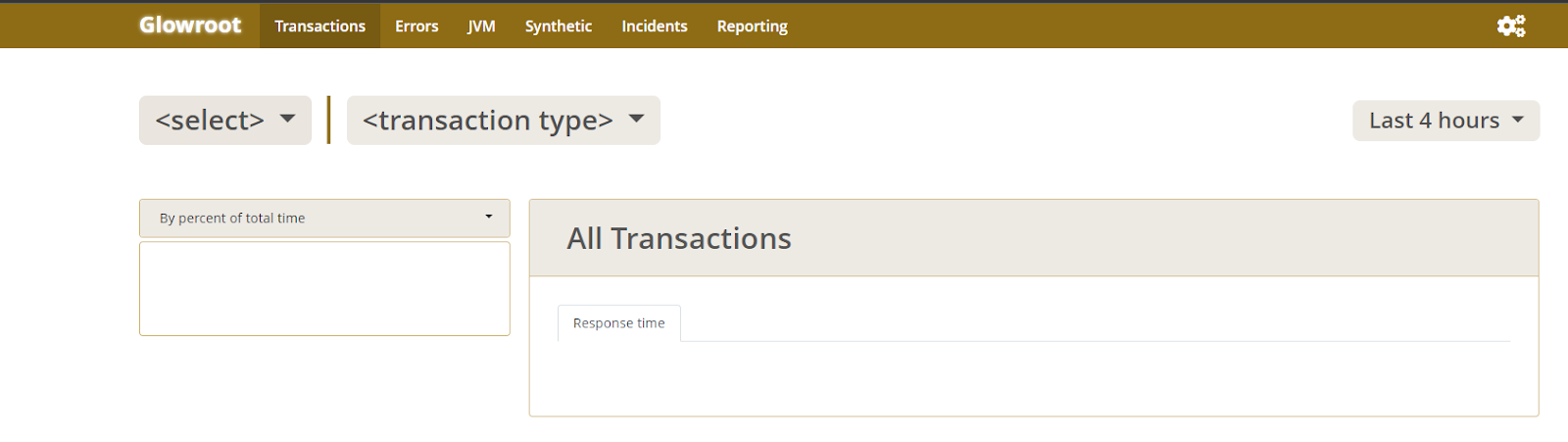
Configure Glowroot Collector Agent:
(Follow the below steps in all Liferay App Nodes)
Go to the Liferay server and go to liferay_Home/
Download the glowroot-agent zip from the link
https://github.com/glowroot/glowroot/wiki/Agent-Installation-(for-Central-Collector)
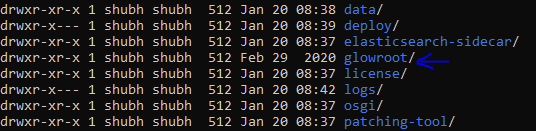
Copy the zip downloaded above to liferay_home/ folder and extract it.
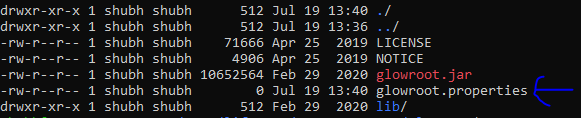
Go inside glowroot/ directory and create a file with the name glowroot.properties
Open the glowroot.properties file and add below parameters
agent.id=LiferayNodeHostname
collector.address= http://GlowrootServerIP:8181
Save and exit after making the above changes.
Make sure to replace LiferayNodeHostname with the original hostname of liferay app server.
Go to Liferay_home/tomcat/bin/ directory and open setenv.sh file.
Add the Java agent entry in setenv.sh file.
Start/Restart liferay servers to load the javaagent .
Below logs will appear in catalina.out log file which means Liferay’s glowroot agent is successfully able to communicate with Glowroot central server.
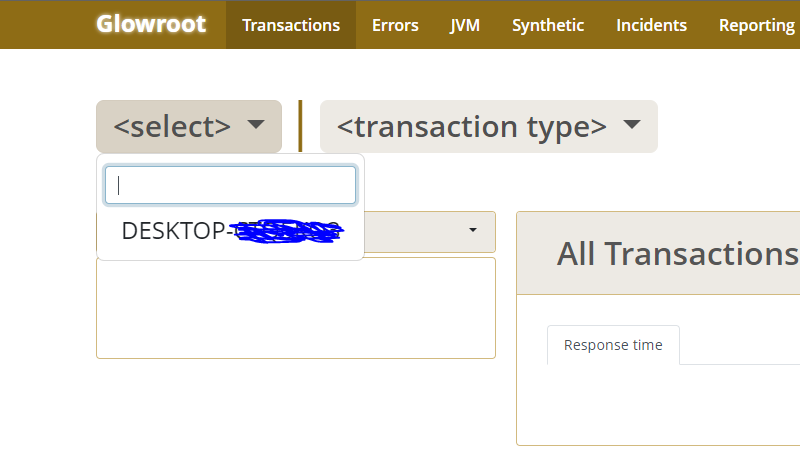
Once the Liferay app is UP and running, go to Glowroot Central in Browser. In the Java agent drop-down, the Liferay node hostname will start coming.
Voilà, you're done!




References
# |
Software/Tool |
Reference Links |
1. |
Azul JDK 11 |
https://www.azul.com/downloads/?version=java-11-lts&os=rhel&architecture=x86-64-bit&package=jdk#zulu |
2. |
Cassandra DB |
https://dlcdn.apache.org/cassandra/4.0.11/apache-cassandra-4.0.11-bin.tar.gz |
3. |
Glowroot Central |
https://github.com/glowroot/glowroot/wiki/Central-Collector-Installation |
4. |
Glowroot Collector Agent |
https://github.com/glowroot/glowroot/wiki/Agent-Installation-(for-Central-Collector) |
MUST READ:
https://liferay.dev/blogs/-/blogs/setting-up-glowroot-apm
Related Assets...
More Blog Entries...


