Blogs
This article highlights some of workspace customizations that could be useful in certain On Premise scenarios

Daniel Carrillo Broeder
Introduction
A client extension built with Liferay Workspace is registered in one virtual instance. That is fine for a single portal, but on-premises installations often run several virtual instances, and the same environment (development, staging, production) may have different instances, or new ones created over time.
In How to set up client extension to be used in multiple On-Premise instances, three ways are described to reuse the same client extension in several instances. This blog post is an unofficial extension of that article: a Liferay Workspace customization that automates those three options from a list of instances per environment, so that adding an instance or switching environments does not mean editing YAML files or building zips by hand.
Getting the instances of an installation
Although several methods exist for getting instance webIds, we will focus on this one because it easily integrates into CI/CD automation. Liferay exposes the virtual instances of an installation through the headless-portal-instances API:
GET /o/headless-portal-instances/v1.0/portal-instances?skipDefault=trueThis endpoint is only available in the default instance, for a user that is an administrator of that instance. The customization uses it to keep the list of instances of each environment up to date.
An OAuth 2 application should be created in the default instance to be used from a build
- Authorization type: Client Credentials.
- Client credentials user: an administrator of the default instance.
- Scope:
Liferay.Headless.Portal.Instances.everything.read.
Then expose its credentials through two environment variables, so they do not end up in your repository:
| Variable | Explanation |
|---|---|
LIFERAY_OAUTH2_CLIENT_ID |
Client ID of the OAuth 2 application. |
LIFERAY_OAUTH2_CLIENT_SECRET |
Client secret of the OAuth 2 application. |
This will be used to automatically extract instances from the Liferay workspace, but it's completely optional.
Hands-on
The code is available on GitHub: github.com/dcarrillolf/lrws-multicx. It is a regular Liferay Workspace for 2026.Q1 with a some local Gradle plugins in buildSrc.
The different plugins are applied automatically to every project under client-extensions/ so no other customization is required to use them. This means that your client-extension.yaml files and sources stay untouched, and only the generated output (zips, configuration files and build folders) reflects the target instances. Apart from the properties described below, no other change is needed.
Initial setup
Describe your environments
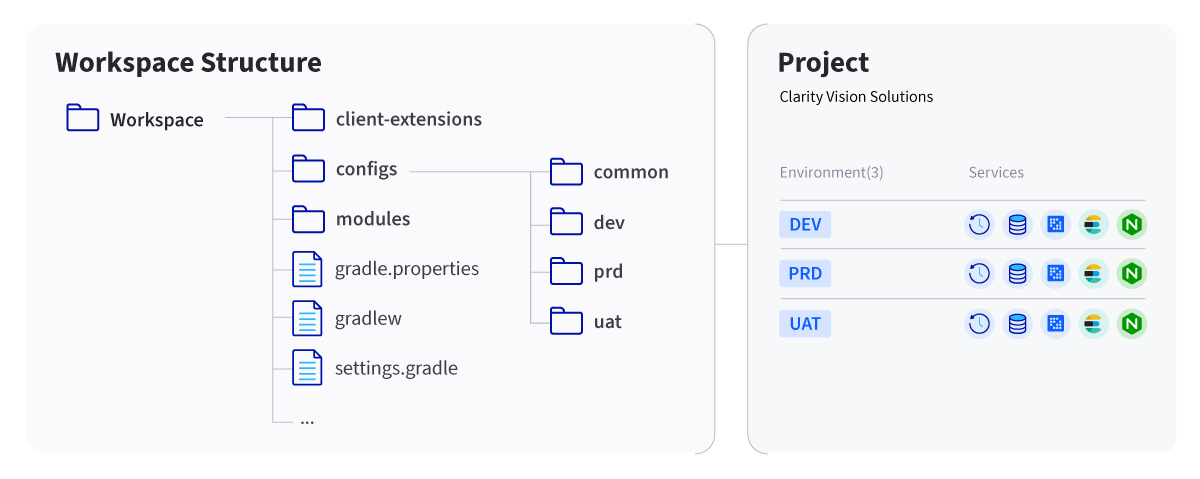
In gradle.properties, set the URL of the default instance of each environment and its list of instances. The environment name matches the configs/<env> folders of the workspace if you use the Option 3:
cx.build.custom.env.url[dev]=http://localhost:8080
cx.build.custom.env.instances[dev]=default,portal2.example.com,portal3.example.com(Optional) Retrieve the instances automatically from the portal
If you have the URL and the OAuth 2 credentials, you don't need to write the list by hand. The task retrieveCXInstances displays all webIds for you:
export LIFERAY_OAUTH2_CLIENT_ID=<client-id> LIFERAY_OAUTH2_CLIENT_SECRET=<client-secret>
./gradlew retrieveCXInstances -Pcx.custom.deploy.env=dev
[cxinstances] http://localhost:8080
[cxinstances] Current: cx.build.custom.env.instances[dev]=default,portal2.example.com,portal3.example.com
[cxinstances] Portal: cx.build.custom.env.instances[dev]=default,portal2.example.com
[cxinstances] Run with -Pcx.custom.instances.apply=true to update gradle.propertiesAdd -Pcx.custom.instances.apply=true to automatically update the list to gradle.properties.
Build and deploy
The three options of the original article become three ways of building. All of them take the list of instances from cx.build.custom.env.instances[<env>] (default in that list stands for the default instance).
Option 1: One zip per instance (official recommendation)
This is option 3 of the original article. Liferay Workspace binds a client extension to an instance with the liferay.virtual.instance.id property, but that property only takes one value per Gradle run. The customization runs Gradle once per instance, in sequence, so you don't have to:
blade gw build -Pcx.custom.deploy.env=dev -Pcx.custom.one-per-instance=true
blade gw deploy -Pcx.custom.deploy.env=dev -Pcx.custom.one-per-instance=true
What to expect:
dist/contains<project>.zipfor the default instance and one<project>_<webId>.zipper instance.- Each zip is a separate bundle with its own web context (
/o/<project>_<webId>/), so all of them can be deployed side by side. - The build takes one Gradle run per instance, so it gets slower as the number of instances grows.
- It relies only on current supported mechanisms, which is why it is the recommended option.
Option 2: One zip, one block per instance
This is option 1 of the original article: a client-extension.yaml with one block per instance, each with its own dxp.lxc.liferay.com.virtualInstanceId.
Instead of maintaining those blocks by hand, the customization generates them at build time and leaves client-extension.yaml untouched:
blade gw build -Pcx.custom.deploy.env=dev
blade gw deploy -Pcx.custom.deploy.env=dev
What to expect:
- A single zip per environment, with one copy of each block per instance, named
<id>--<webId>. - The static resources are deployed once and shared by all instances (
/o/<project>/). - The effective YAML is written to
build/cx-multi-instance/client-extension.<env>.yaml, so you can check what went into the zip. - Take into account that
dxp.lxc.liferay.com.virtualInstanceIdis deprecated. Although it still works in 2026.Q1, but it might be removed in a future release.
Option 3: OSGi configuration files
This is option 2 of the original article: Deploy the default instance zip once, and register the client extension in every other instance with an OSGi configuration file that points to the same resources. The customization generates those OSGi configuration files automatically into osgi/configs:
blade gw generateCXConfig -Pcx.custom.deploy.env=devThis action does not build the default client extension, that should be created without any params:
blade gw build
blade gw deploy
What to expect:
- One file per instance in
configs/<env>/osgi/configs, namedcom.liferay.client.extension.type.configuration.CETConfiguration~<id>--<webId>.config. - The generated files contains the hashed file names of the build they come from, so configurations should be regenerated and deployed with every new version.
Conclusion and next steps
If you are wondering which one should you use:
Option 1 is the officially recommended approach, because it only relies on the supported liferay.virtual.instance.id property, but generates N zip files that should be validated, maintained and deployed.
Options 2 is a currently (2026.q1) valid alternative that could help to simplify deployments as only one zip file is deployed, similar to traditional Liferay developments.
Option 3 This option could be the best for generating a single 'instance-agnostic' zip file that can undergo a single validation and certification process. However, this approach may have not covered limitations and requires deploying N additional configurations for every version.
Keep in mid this is custom, unofficial approach, built on top of Liferay Workspace to try to make "life easier" when the same client extensions have to reach many virtual instances.
Deploying client extensions across multiple virtual instances is currently on Liferay's radar, with re-evaluation planned for 2027. Keep an eye on the official documentation and ticket LPD-110276 (including child work items). for upcoming updates.
Until then, I hope this saves you some time.
Related Assets...
More Blog Entries...