<><utm_campaign=dev.liferay&utm_medium=organic&RefId=dev.liferay" rel="noopener noreferrer" target="_blank">DEVCON 2026    |    2-5 November 2026 – QEII Centre – London, UK    |    Register now! 

Blogs

Liferay Portal 7.4 GA90 and Liferay Commerce 4.0 GA90 Release

We are pleased to announce the release of Liferay Portal 7.4 GA90 and Liferay Commerce 4.0 GA90!

Jamie Sammons
Jamie Sammons
2 perces olvasmány

Download options

Liferay Portal and Liferay Commerce share the same Bundle and Docker image.  To get started using either Liferay Portal or Liferay Commerce, choose the best download option suited for your environment below.

Docker image

To use Liferay Portal 7.4 GA90:

I was recently in a meeting reviewing some FreeMarker templates
  that were extracting web contents using a structure, parsing and
  processing the data, and rendering an output. Basically the
  implementation was kind of the classic or "legacy" way of
  doing specialized presentation of structured contents in Liferay.

In this case they had a Carousel implementation, so they had a web content structure with the fields for the image, the title, the summary, a link, etc. They also had the web content template in FM that would render the carousel card, then they also had an Asset Publisher w/ another template that could render the DOM for the carousel, plus there was additional theme JS/CSS that were necessary to make it all work together.

While this works, it does present a number of challenges. First and foremost, it absolutely requires developer resources to handle the FM templates and anything going on inside of the templates. Additionally, I'm just cringing at all of the FM use in general because I know that it's interpreted and also that it is probably doing too darn much and will negatively impact performance.

Additionally, the web content is hard to use from a headless perspective. I mean, sure you can get the article, but the fields may be a lot harder to get to, plus you can't do things like request three fields from the content, you like always get them all.

When you have content creators with different roles, i.e. some are allowed to create Carousel records but others are not, you need to permission your structures and templates correctly so the users who can't create Carousel records can't access the structures, but this in turn can cause issues if they are just browsing the site and it has the structured contents on it...

There's just so much not to like about structured web contents, especially given Liferay's adoption of low code/no code as a way to empower business users to be able to create and maintain the content pages.

When you're on a later version of Liferay, there actually are better ways to do this kind of thing. Come along with me while we build this out. I know that at times you're going to be like "Why is he doing that?" or "Why is he using this?", but I encourage you to follow along and do the same things and, when we get to the end and we're discussing pros/cons, it will all kind of make sense...

Challenge

So the challenge we're going to tackle here is building a Carousel in Liferay. I can hear it now, "I already have at least one carousel, why do I need another?"

The point here is not to present just another carousel, the point here is to present an alternative way to capture, store and render custom structured content. A carousel is just a convenient meme that everyone will understand.

It is taking the new and better way to approach structured data and putting this way to use in a UI element that everyone can understand.

Defining the Carousel

So our carousel is going to have the following fields:

  • A background image
  • A title
  • A summary text
  • A call to action URL

So our carousel will have all of the typical stuff, there will also be a call to action button where we can select a page to navigate to if the user clicks the button.

We could add more things on here like a "read more..." link and, you know, other custom structure fields as necessary to define what will be displayed.

Defining the Carousel Object Definition

If you're familiar with the classic way of handling structured content, you're probably already navigating to the Site menu, Content & Data, Web Content to create the structure.

But you'd be wrong. We're actually going to head to the Waffle, Control Panel, Objects so we can define our Object there.

We're actually going to use an Object for the structured data instead of a Web Content. We'll save the full list of whys for the conclusion of the article, but at this point the only thing that matters is that we can create an Object that contains all of the fields we need for rendering.

Before we go further, a bit of setup...

So I'm using DXP Q4.6 release, this should equate to CE GA 102. Newer should work, even older may work, but UIs may change and feature set, etc.

Additionally, I've navigated to the Waffle, Instance Settings, Feature Flags and have enabled the following feature flags. These will change the UI from the default views, so you'll want to enable these settings also. In newer or older versions these flags may be permanently enabled or promoted/demoted or not available at all. For the most part this shouldn't matter much as the blog doesn't pivot on these specific changes but it will give you a look at the things to come...

Oh and I've also edited the images to remove the irrelevant items, so don't worry if your list doesn't match this one exactly, just enable the same ones selected below.


Since I like to stay a bit organized, the first thing I'm going to do is create an Object Folder named Structured Contents. This is where I would create different types of objects that represent structured contents that I plan on displaying.

In the Structured Contents folder, I'm going to create a new object called Carousel Entry.

Once my entry is created, and since it's my first one, my list is pretty simple:


Click into the Carousel Entry object to define it further.

The very first decision we need to make on our object is the Scope. We have two options, we can pick Company (aka Instance) and this would be akin to making the carousel entry available to all sites (basically same as creating web content in the global site), or we can pick Site and the carousel entries would only be visible in the site that we define them for.

In my implementation, I'm going with Site because each site would have individual content creators and they each have different things they are displaying in their carousels, so its a good choice for me. In other implementations or for other structured contents, the choice may be better to use the Company scope. Just be sure to pick the right one now since we can't easily change it in the future.

Now, you might say that you need both, maybe some that are shared and others which are not... There are ways that you can do this (i.e. define a CompanyCarousel and a SiteCarousel and pull the data together using a Blueprint search or via API builder, etc), but those implementation details are beyond the scope of this blog post...

With Site for my scope, I'm also going to set a panel link as Site Administration > Content & Data because that's the obvious place to have a control panel for Carousels, yeah?

So here's another benefit for using Objects - you get specific control panels for each one. The classic way, you have to go to Web Content, maybe navigate into a folder, click the Add button, pick the right structure, then you can start setting the fields. With content objects like this one, a site admin can just go to the Carousel Entries control panel and add new entries there.

After setting the scope and the panel link, I'm also going to enable the Entry History in Audit Framework option because I want to track the changes made to the entries.

Actually I planned on enabling object translations, and the screenshots here in the blog reflect that. However, I encountered a bug in Liferay that translated fields in site-scoped objects cannot be mapped. Since I was more interested in finishing the blog than I was on solving the defect, I opened a bug report, deleted my object and re-created the object but without the translations enabled. Maybe by the time you are reading this, translation mapped fields will be fixed and you can proceed as I started, but if you hit the same issue as me, at least you'll know what the cause was.

Click the Save button (not the Publish button), then go to the Fields tab to define the fields for the carousel entries.

I've jumped ahead and added my 4 fields. They are pretty straight forward:


The only one that needs more explanation is the Background Image guy. It's type is Attachment, and for the Select Files dropdown I selected the Upload or Select from Documents and Media Item Selector. There's not much other configuration you can do directly in the form, but once you add the field and then click on it in the list, the right-side fly out gives you a few more options. I've edited mine as follows:


By limiting the file types to images, I know that I'm only going to allow the user to select image files. I've also set the max file size to 0 because even though I'd prefer images of 100MB or less, I just can't guarantee that all images will conform to that limitation.

We have what we need now for the Carousel Entry object, so we can go to the Details tab and now Publish the Object Definition.

In my own implementation, I did take a moment before publishing to define a default Layout (in the Layouts tab) and View (in the Views tab). These aren't really necessary, but they will be used by the generated Control Panel, so defining these will let you control the presentation. You can add this before publishing the object or come back and add after publishing the object. Just remember that the default Layout and View will be used by the Control Panel.

At this point we have defined an Object that represents what our structured data represents, in this case it is an individual carousel entry. We also have a control panel entry that content admins can use to define new carousel entries, so we have the data entry partially covered.

The next part we need to address is rendering the carousel with our new carousel entry objects.

Building The Carousel Display

The cornerstone of the carousel display is going to involve using a Collection Display fragment on a content page. The Collection Display fragment is bound to a collection (or a collection provider) and typically handles the rendering of each item in the collection, but also is done using fragments and mappings to fields within the item (in this case a Carousel Entry) to display.

What we want to display is a standard sort of Carousel, so the large background image, highlighted title and summary detail, plus a "read more" type button to get to further detail.

Now to keep things simple (from an implementation perspective), I am going to use https://swiperjs.com/ as the foundational implementation. This will require using a hierarchy of divs with assigned classes...

To make this happen, we'll use a Header, a Paragraph, and a Button fragments to display the title, summary and call to action. In addition, we'll need a container fragment for rendering the individual carousel entry (Swiper calls them slides), (will have the assigned background image and necessary Swiper classes), and an outer container fragment that will wrap the collection display and pull all of the Swiper stuff together...

So basically I'll need two custom fragments, one for the container at the item level, and the other is the outer container that controls the carousel. I'll start with the item-level container...

Creating the Carousel Slide Container

So we're going to create a custom fragment! So I navigated to Design -> Fragments, then I created a new Fragment Set titled Structured Content Fragments, and in there I created a new Basic Fragment which I called the Carousel Slide.

The Carousel Slide HTML content was really all that I defined for the fragment, and it consists of:

<div class="swiper-slide carousel-slide"
    data-lfr-background-image-id="carousel-slide-background-img">
  <lfr-drop-zone></lfr-drop-zone>
</div>

So our <div /> has two classes assigned, one is the swiper-slide which is used by SwiperJS, the other is carousel-slide which can be used to style the content of the slide itself.

The <div /> also has a background image assigned, and using the data-lfr-background-image-id attribute will allow us to map to an image selected when the fragment is used. With this in place, when we are setting up the fragment in the UI we'll be able to map to the image file that is assigned in the Carousel Entry.

The <lfr-drop-zone /> tag inside of the <div /> is what turns the div into a container; we're declaring that any fragment can be dropped in the drop zone, so once this container is used on a page we'll be able to drop the Header, Paragraph and Button fragments into the container.

In fact, I created a Carousel page and then started adding the Carousel Slide fragment and dropped the Heading, Paragraph and Button fragments inside of the container. It doesn't look pretty (at the moment) and doesn't have the mapping enabled, but it certainly has the structure and items that we'll be needing:

Creating the Carousel Container

With the carousel slide out of the way, we can now move on to the carousel container itself.

It's the responsibility of this container to set up and configure SliderJS to work on the content, and even though it is a container it will only hold the Collection Display fragment.

The Collection Display fragment will be bound to the collection, then we'll be using the Carousel Slide container for each item in the collection to display.

So again I go to Design -> Fragments and in the Structured Content Fragments fragment set I created a new Carousel basic fragment. Like the Carousel Slide fragment, the HTML for the Carousel fragment is pretty simple:

<div class="swiper carousel">
  <div class="swiper-wrapper" id="swiperWrapper">
    <lfr-drop-zone></lfr-drop-zone>
  </div>
  <div class="swiper-button-next"></div>
  <div class="swiper-button-prev"></div>
  <div class="swiper-pagination"></div>
</div>

Unlike the Carousel Slide fragment, the Carousel fragment has some JS associated with it:

const editMode = document.body.classList.contains('has-edit-mode-menu');

if (!editMode) {
  const script = document.createElement('script');
  script.type = 'text/javascript';
  script.src = 'https://cdn.jsdelivr.net/npm/swiper@11/swiper-bundle.min.js';
  document.head.appendChild(script);

  const link = document.createElement('link');
  link.rel = 'stylesheet';
  link.href = 'https://cdn.jsdelivr.net/npm/swiper@11/swiper-bundle.min.css';
  document.head.appendChild(link);

  script.onload = () => {
    // eslint-disable-next-line
    var swiper = new Swiper(".carousel", {
      spaceBetween: 30,
      effect: "fade",
      navigation: {
        nextEl: ".swiper-button-next",
        prevEl: ".swiper-button-prev",
      },
      pagination: {
        el: ".swiper-pagination",
        clickable: true,
      },
    });
  };
} else {
  document.getElementsByClassName('swiper-wrapper')[0].style.zIndex = -1;
}

This script first figures out if currently in edit mode. When in edit mode, the z index for the div is modified, but otherwise nothing happens.

The magic is when not in edit mode. The JS and the CSS for Swiper are loaded, then the Swiper is initialized for the <div /> with the carousel class. When not in edit mode, the Carousel should work as expected. In edit mode, the controls will be easier to access and configure because the Swiper will not be activated, it will just render as a normal Collection Display fragment.

Building the Carousel Page

We now have all of the pieces that we need to make the Carousel so we are ready to create the page.

Before creating the page, I did go to Content & Data -> Carousel Entries (the control panel I get by setting the panel link in the object definition) and I created a few entries. Google was a great help in finding some free banner images which I downloaded and set on each of the carousel entries.

I then went to the Site Builder -> Pages and created a new Carousel page from the Blank Page template.

With the page in edit mode, I first dropped a Carousel fragment on the page, within that I dropped and configured a Collection Display fragment to use the Carousel Entries collection provider, and in the Collection Item drop zone I dropped the Carousel Slide fragment, mapping the background image to the Carousel Entry's background image, and then I dropped a Header, Paragraph and Button fragments into the Carousel Slide. I mapped the Header to the Title, the Paragraph to the Summary, and the Button Link to the Call To Action URL.

Thus my carousel was complete so I published the page.

And... nothing. The published page had my stuff on it, the DOM elements were there, I even verified that Swiper JS and CSS were being loaded...

I then took a look at some of the sample Swiper demos, and I found that their DOM was like:

<div class="swiper mySwiper">
  <div class="swiper-wrapper">
    <div class="swiper-slide">
      ...
    </div>
    <div class="swiper-slide">
      ...
    </div>
    <div class="swiper-slide">
      ...
    </div>
    <div class="swiper-slide">
      ...
    </div>
  </div>
  <div class="swiper-button-next"></div>
  <div class="swiper-button-prev"></div>
  <div class="swiper-pagination"></div>
</div>

When I checked the DOM for what my collection display fragment was using, I had <div /> inside of <div /> inside of <div />, many more levels than what SwiperJS was expecting.

So I changed the javascript on the Carousel fragment to be:

const editMode = document.body.classList.contains('has-edit-mode-menu');

if (!editMode) {
  const script = document.createElement('script');
  script.type = 'text/javascript';
  script.src = 'https://cdn.jsdelivr.net/npm/swiper@11/swiper-bundle.min.js';
  document.head.appendChild(script);

  const link = document.createElement('link');
  link.rel = 'stylesheet';
  link.href = 'https://cdn.jsdelivr.net/npm/swiper@11/swiper-bundle.min.css';
  document.head.appendChild(link);

  script.onload = () => {
		
    var slides = document.getElementsByClassName('carousel-slide');
    var slidesHtml = '';
		
    for (let item of slides) {
      slidesHtml = slidesHtml + item.outerHTML;
    }
		
    var wrapper = document.getElementById('swiperWrapper');
    wrapper.innerHTML = slidesHtml;
		
    // eslint-disable-next-line
    var swiper = new Swiper(".carousel", {
      spaceBetween: 30,
      effect: "fade",
      navigation: {
        nextEl: ".swiper-button-next",
        prevEl: ".swiper-button-prev",
      },
      pagination: {
        el: ".swiper-pagination",
        clickable: true,
      },
    });
  };
} else {
  document.getElementsByClassName('swiper-wrapper')[0].style.zIndex = -1;
}

This allowed all of the fragments to be rendered, but then I found all of the carousel-slide divs, concatenated their DOM, then overrode the innerHTML on the swiperWrapper element, basically removing all of the extra <div />s that the collection display was using that I no longer needed.

After saving and propagating the fragment, my page now looked like:


Sure, it still needs a bit of style applied to it (beyond what I had done in my testing), but the carousel itself works, the forward/backward arrows work as does the pagination dots at the bottom of the page.

So while it's not quite ready for production, it is certainly close enough to prove the thing is doable.

Stop or Continue?

So my implementation looks good, so now the question becomes, should I stop here or continue on?

Consider:

  • My Carousel Entry collection provider returns all of the entries defined for the site. As the content creator, I can use the generated control panel to add new entries, but I'd also have to use it to delete the entries that should no longer be in the carousel. I could add a boolean checkbox to the Carousel Entry to display the entry or not, then add a special Blueprint Collection Provider (enabled via a feature flag) that would return all Carousel Entries that had the boolean checked.
  • I only allow for a single carousel per site, but maybe different pages would need different carousels. I could add a key field to the Carousel Entry, plus a Blueprint Collection Provider to filter for specific keys. That way my carousel would be tied to a specific key and that key would match a set of Carousel Entries that had the same key.
  • Content creators would need to have access to the control panel to get to the Carousel Entries panel. I can use a regular old Form Container bound to the Carousel Entry object on a protected page so content creators could manage the Carousel Entries without navigating to the control panel at all.
  • In fact, I could use a "content creator" segment to add list and form views under the carousel so they could make changes in the page itself, but the segment wouldn't be available to others, they'd only see the carousel.
  • As objects, the Carousel Entries are available via the Headless API generated for the object, also available via the Headless Batch API, are subject to the new Datasets and Data Migration Center features in Liferay, so I have a long list of options available to support export/import and content promotion/demotion between environments.
  • Objects are subject to Workflow and Publications, so these tools can be leveraged to review and approve content prior to going live.

Given all of these opportunities (and probably others which I've overlooked), although I'm choosing to stop at this point, there's no reason why you couldn't continue and build out the solution you need...

Conclusion

So granted this Carousel was a contrived solution, but generally it is a good representation of what is possible if you can get away from web content structures and focus on Objects for your structured content needs.

Doing so offers the following advantages:

  • You can get a specific control panel for your structured content, making creating and maintaining these a lot easier because they are permissioned separately and don't push every solution into web content and the web content display.
  • Eliminates the need to use FreeMarker, instead leveraging the Collection Display fragment and other fragments with field mappings to handle a customized layout but created visually without support from developers.
  • Because I get a complete Headless API for my Carousel Entry objects, I can easily access, create, update and delete entries without having to jump through the structured web content hoops.
  • Impressive number of export/import options to support moving Objects between environments where traditional Liferay tools (i.e. LAR export/import) tend to fail easily and often.
  • Using form container fragments, you can move your content creators out of the control panel entirely, giving them either generated or handmade (well, handmade in the UI, not handmade as in writing code or JSPs or what not) interfaces for maintaining content outside of the control panel.

By leveraging Objects and custom fragments, it is possible to envision a world where, instead of using OOTB Liferay entities such as blogs, wikis, etc, perhaps you build them as Objects and custom fragments for rendering?

Or taking what you previously would do in a web content structure with FreeMarker web content templates and reworking them as Objects/Fragments?

Before you start down this road, it is important to consider the disadvantages/shortcomings:

  • Objects lack some of the field types (and custom field types) that you might define for a web content structure.
  • Objects lack the kind of composition support you now have with Web Content Structures and Field Sets. Objects can have relationships, but the lack of a 1:1 relationship is still a drawback here.
  • An "Object Display" fragment is missing... I would want to be able to drop an object display fragment onto a page (like a web content display), select the object to display, then drop child fragments in the container and map to the object fields for display. This way I could drop a bunch of Object Display fragments on a page, point them at different objects, and use fragments w/ field mappings for the display. Right now you are kind of stuck going through a collection display / collection item even when you only have a single object you want to display, plus you have to leverage a blueprint to get there. Don't worry, I did open a feature request for this guy, now I just have to fight to get him added to the roadmap...

So there you have it, a brand new way to approach structured data/structured content by leveraging Objects and Fragments instead of Web Contents.

While they're not yet at feature parity, I'd still argue that the benefits you get from this approach can be worth becoming an early adopter of this technique.

Let me know in the comments below the kind of structured contents you build using this technique, what kinds of things you find easy to do, and especially call out things that you think are missing (like the Object Display fragment) so we can take them to the product team and try to get them implemented.

docker run -it -p 8080:8080 liferay/portal:7.4.3.90-ga90

Bundles and other download options

If you are used to binary releases, you can find the Liferay Portal 7.4 GA90 and Liferay Commerce 4.0 GA90 release on the download page.  If you need additional files (for example, the source code, or dependency libraries), visit the release page.

Dependency Management

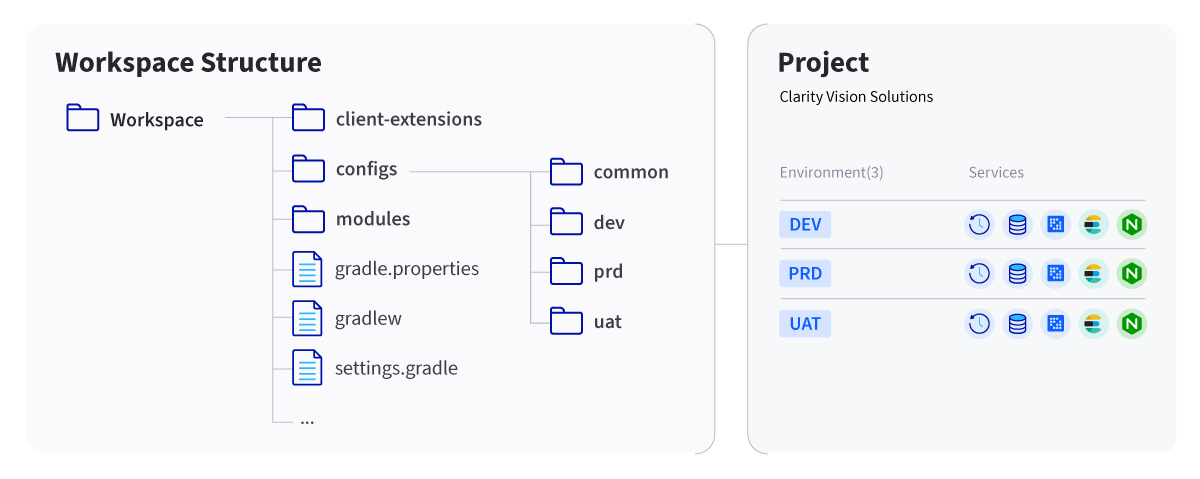
For development using the Liferay Platform, update Liferay Workspace to use the  lat est dependencies, by adding the following line to the build.gradle file:

dependencies {
	compileOnly group: "com.liferay.portal", name: "release.portal.api"
}

All portal dependencies are now defined with a single declaration. When Ausing an IDE such as Eclipse or IntelliJ all apis are immediately available in autocomplete for immediate use.  

By setting a product info key property it will be possible to update all dependencies to a new version by updating the liferay.workspace.product property in the liferay workspace projects gradle.property file:

liferay.workspace.product = portal-7.4-ga90

When using an IDE such as Eclipse or IntelliJ all apis are immediately available in autocomplete for immediate use.

Features

Experience Management

Documents and Media Version History Page

Page listing the version history of a document t help managing different version

https://liferay.atlassian.net/browse/LPS-175915

Avoid MB dependency on font awesome

Priority icons to MB CSS added to avoid force enable font awesome in the whole portal

https://liferay.atlassian.net/browse/LPS-190343

Frontend Infrastructure

Configuration and Definition of Dataset Views for Headless Resources
​​​​​​​

A new application, named Data Set Manager (Data Sets in the Control Panel) allows admins to define through a UI data set views for the different headless resources available. Admins will be able to choose the data source, as well as configure the columns to be available and the pagination options for the different views.

To enable this feature:

  1. Add feature.flag.LPS-167253=true to your portal-ext.properties

  2. Go to Instance settings > Feature Flags and enable “Data set manager” in the Beta tab.


In addition to the data set manager, two additional components have been added to provide the full value to the users:

  • A new fragment, so this views can be integrated in any content page. Content managers will select the data set view to display on each fragment.

  • A new frontend client extension, Frontend Data Set Cell Renderer, that allows developers to customize how any field of the data set view is rendered, providing total control of the look and feel of any column.

https://liferay.atlassian.net/browse/LPS-164563
​​​​​​​https://liferay.atlassian.net/browse/LPS-172904

Documentation

All documentation for Liferay Portal and Liferay Commerce can now be found on our documentation site: learn.liferay.com.  For more information on upgrading to Liferay Portal 7.4 GA90 see refer to the Upgrade Overview.

Compatibility Matrix

Liferay's general policy is to test Liferay Portal and Liferay Commerce  against newer major releases of operating systems, open source app servers, browsers, and open source databases (we regularly update the bundled upstream libraries to fix bugs or take advantage of new features in the open source we depend on). 

Liferay Portal 7.4 GA90 and Liferay Commerce 4.0 GA90 were tested extensively for use with the following Application/Database Servers: 

Application Server

  • Tomcat 9.0

  • Wildfly 18.0, 23.0

Database

  • MySQL 5.7, 8.0

  • MariaDB 10.2, 10.4, 10.6

  • PostgreSQL 12.x, 13.x, 14.x

JDK

  • IBM J9 JDK 8

  • Oracle JDK 8

  • Oracle JDK 11

  • All Java Technical Compatibility Kit (TCK) compliant builds of Java 11 and Java 8

Search Engine Compatibility Matrix

Source Code

Source is available as a zip archive on the release page, or on its home on GitHub.

Bug Reporting

If you believe you have encountered a bug in the new release you can report your issue by following the bug reporting instructions.

Getting Support

Support is provided by our awesome community. Please visit getting started for more details on how you can receive support.

Fixes and Known Issues

Hozzászólások az oldalhoz

Related Assets...

Nincsenek találatok

More Blog Entries...

Ben Turner
szeptember 02, 2026
David H Nebinger
augusztus 18, 2026
David H Nebinger
augusztus 16, 2026