Blogs
Migrating an enterprise portal like Liferay DXP is a major milestone. Moving from Liferay 7.2 to the modern 7.4 (2026 Q1) release brings massive performance improvements, fresh features, and better security. However, bridging that gap requires a meticulous strategy.

Madhukar Kumar
If you are planning this upgrade, here is your definitive, step-by-step technical playbook to take your local environment, database, and codebase from 7.2 to 7.4.
Phase 1: Environment & Local 7.2 Baseline Setup
Before jumping into the new version, you must recreate a stable, working baseline of your Liferay 7.2 environment locally.
1. Upgrade the Core Runtime
Liferay 7.4 (2026 Q1) demands modern Java infrastructure.
- Task: Upgrade your Java development kit from JDK 8 to JDK 21.
- Why? JDK 21 provides the long-term support (LTS) foundation required by modern Liferay bundles.
2. Restore the Local 7.2 Environment
To ensure a reliable migration, test the upgrade against a real data snapshot.
- Database Dump: Download a fresh database dump from your Development environment.
- Import Data: Restore this dump into your local MySQL instance.
- Data Folder: Unzip and sync the data/ folder (which holds your document library and file store) from your 7.2 backup.
- Initialize 7.2 Workspace: Download and unzip your matching Liferay 7.2.0 bundle, connect it to your imported database, and boot it up once to ensure everything resolves cleanly.
Phase 2: Preparing the Target 7.4 Environment
With the baseline established, it’s time to build the target framework.
- Download the Target Bundle: Obtain the official Liferay DXP 7.4 2026Q1 bundle.
- Unzip the Bundle: Extract it to your desired local directory (this will be your new $LIFERAY_HOME).
- Initial Data Sync: Copy your existing data/ directory from the old 7.2 Tomcat installation directly into the new 7.4 Tomcat directory.
Phase 3: Database Upgrade (MySQL 5.7 to 8.*)
Liferay 7.4 thrives on MySQL 8.*. Upgrading your database topology safely requires a strict sequence:
Step 1: Pre-Upgrade Compatibility Checks
Before moving any data, use the MySQL Shell utility to ensure your 5.7 database won’t conflict with 8.* syntax or features. Run the following command:
Bash
mysqlsh –user=root –password –host=localhost –util checkForServerUpgrade –targetVersion=8.0.35 –outputFormat=TEXT
Step 2: Backup and Migrate
- Create a Full Data Backup: Export a comprehensive .sql backup of your checked 5.7 database.
- Spin up MySQL 8.*: Create a brand new MySQL 8.* instance (or Docker container).
- Crucial Configuration: Ensure lower_case_table_names=1 is configured in your my.cnf or set as a flag when starting your MySQL 8.0 container.
⚠️ Warning: Failing to set lower_case_table_names=1 before database initialization can cause irreversible Liferay database schema mismatches on certain operating systems. - Import Data: Use DBeaver (or your preferred database client) to import your backup SQL directly into the new MySQL 8.* instance.
Phase 4: Executing the DB Upgrade Client
Instead of upgrading on the fly, use Liferay’s dedicated DB Upgrade Client tool for a controlled, visible schema migration.
1. Configure the Upgrade Properties
Navigate to: \liferay-dxp\tools\portal-tools-db-upgrade-client\ Create or edit the portal-upgrade-ext.properties file to point directly to your new MySQL 8.* instance:
Properties
liferay.home=../../
##
## MySQL Configuration
##
jdbc.default.driverClassName=com.mysql.cj.jdbc.Driver
jdbc.default.url=jdbc:mysql://localhost:3306/lportal?useSSL=false&characterEncoding=UTF-8&dontTrackOpenResources=true&holdResultsOpenOverStatementClose=true&serverTimezone=GMT&useFastDateParsing=false&useUnicode=true
jdbc.default.username=****
jdbc.default.password=****
2. Run the Client
Open your terminal, navigate to the tool folder, and execute the upgrade script:
- Windows: db_upgrade_client.bat
- Mac/Linux: ./db_upgrade_client.sh
Monitor the console logs closely for any schema errors or breaking changes.
Phase 5: Core Upgrade & Target Startup
Once the database schema is officially upgraded, prepare your 7.4 server properties for its maiden launch.
1. Environment Configurations
Copy over your key portal configuration files into the new environment, ensuring you update the paths, schemas, and credentials to reflect the 7.4 layout:
- portal-ext.properties
- portal-setup-wizard.properties
2. Force Auto-Run Check
Open your active portal-ext.properties file and append this property to ensure missing tables or data structures auto-repair on boot:
Properties
upgrade.database.auto.run=true
3. Clean Licenses & Prep Activation
- Navigate to your synced data/license/ folder and remove all old .li licenses.
- Deploy your new Liferay DXP 7.4 activation key into the deploy/ folder.
4. Start the Server & Reindex
Fire up the Liferay 7.4 Tomcat server. Once the server completes its startup sequences cleanly, navigate to the Control Panel > Search and trigger a full Reindexing of all modules to ensure your search indexes match the new data structures.
Phase 6: Code Upgrade
With the platform up and running, the final step is migrating your custom applications.
- Copy your custom modules and applications from your older 7.2 workspace into the new 7.4 workspace structure.
- Update your build.gradle dependencies to point to the 7.4 2026Q1 target platform BOM (Bill of Materials).
- Address any deprecated APIs or breaking changes within your Java classes and OSGi modules, compile, and deploy!
- Import workspace in intellij
- Change the workspace target version gradle.properties
liferay.workspace.product=dxp-2026.q1.0
liferay.workspace.target.platform.version=2026.q1.0
- Set gradle version to latest one in settings.gradle
dependencies {
classpath group: “com.liferay”, name: “com.liferay.gradle.plugins.workspace”, version: “15.0.0”
}
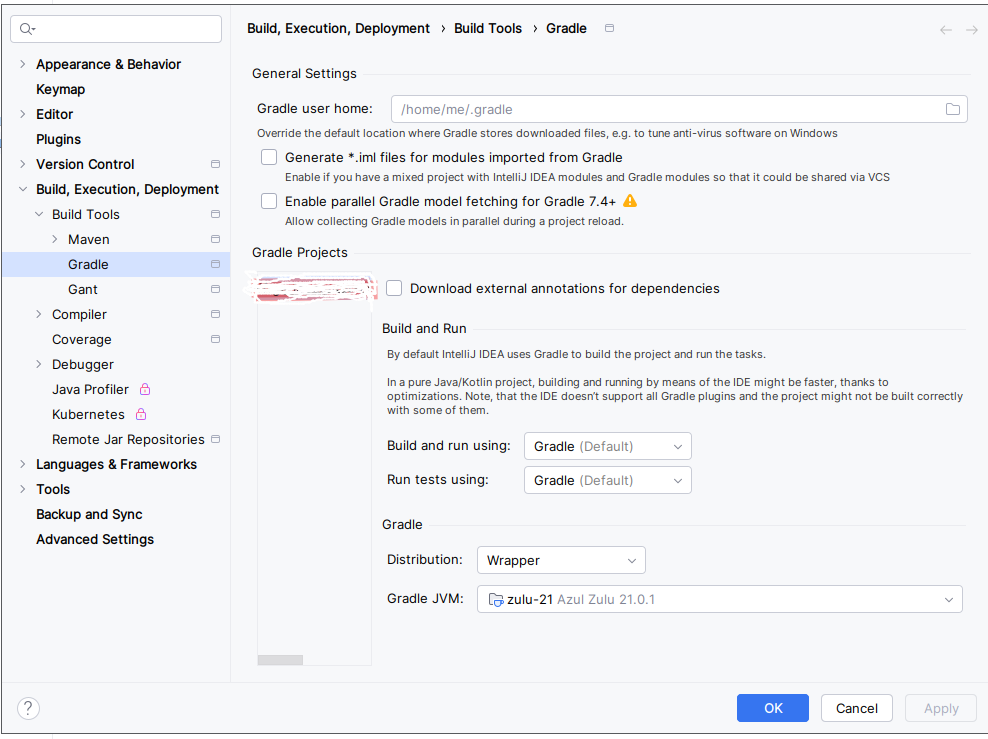
- Set java version to 21 in Intellij
- String pool
Replace import com.liferay.portal.kernel.util.StringPool;
With import com.liferay.petra.string.StringPool;
- Build.gradle
Replace compileOnly group: “com.liferay.portal”, name: “com.liferay.portal.kernel”
With compileOnly group: “com.liferay.portal”, name: “release.dxp.api”, version:”default”
- Replace import javax.servlet.http.HttpSession;
With import jakarta.servlet.http.HttpSession;
- Replace import com.liferay.portal.kernel.search.generic.MultiMatchQuery;
With import com.liferay.portal.kernel.search.MultiMatchQuery;
Known issue with few modules
Error: Classes found in the wrong directory: {META-INF/versions/9/module-info.class=module-info}
- Replace import com.liferay.portal.kernel.captcha.CaptchaUtil
With import com.liferay.portal.kernel.captcha.Captcha;
- Replace ZipWriter zipWriter = ZipWriterFactoryUtil.getZipWriter();
With ZipWriter zipWriter = _zipWriterFactory.getZipWriter();
Add @Reference private ZipWriterFactory _zipWriterFactory;
- Replace compileOnly group: ‘xml-apis’, name: ‘xml-apis’, version: ‘1.0.b.2’
With compileOnly group: ‘xml-apis’, name: ‘xml-apis’, version: ‘1.4.01’
- Create a new service builder with the same name or different name using the same service.xml.
- Implement all finders and impl methods from old service module impl
- Keep version: “default” in the build.gradle file.
- Rerun the build service task and deploy task
Conclusion
Migrating from Liferay 7.2 to 7.4 might seem daunting, but breaking it down into distinct phases—Environment Setup, Database Upgrades, Tools Execution, and Code Migration—ensures a predictable, successful deployment.
Take your time with the pre-upgrade checks, keep backups at every phase, and enjoy the massive benefits of Liferay 7.4!
Related Assets...
More Blog Entries...