Blogs

gulnaaz Shaik
Lesen in 3 Minuten
To create a theme in liferay 7, Theme generator needs to be installed.
For installing theme generator and to make it work, follow these steps :
1. Download Node.js from the link https://nodejs.org/en/
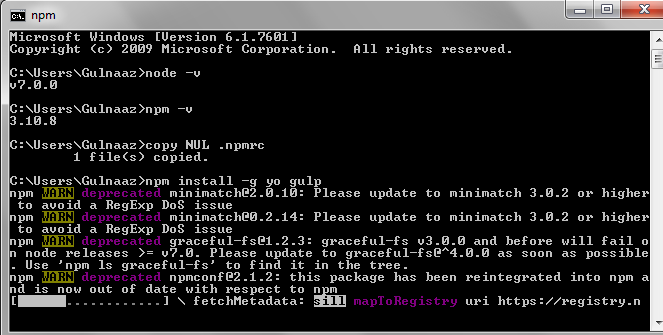
Along with node js NPM packages also gets installed. To verify if node.js and npm are installed open command prompt and check the node js and npm versions
 2. Environment setup for NPM
Before we build our theme, we need to install Sass, as liferay7 supports Sass in theme.
There are 2 options for using Sass :
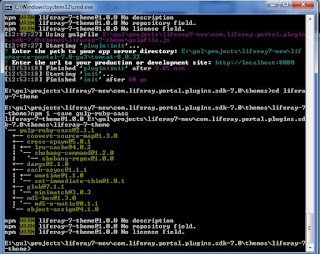
9. Theme structure is now created. Plugin SDK uses _diffs folder whereas theme generator development uses src folder. Inorder to make changes to theme, copy the files from build to src directory.


For installing theme generator and to make it work, follow these steps :
1. Download Node.js from the link https://nodejs.org/en/
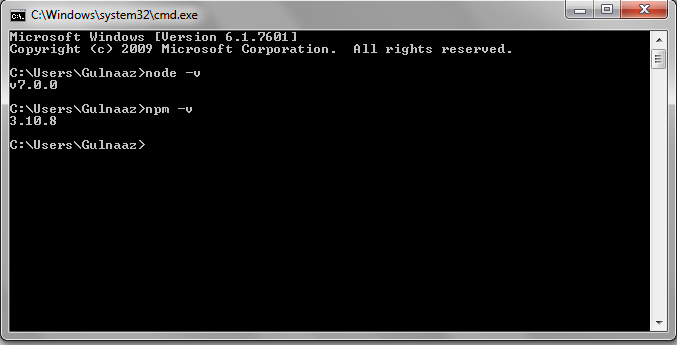
Along with node js NPM packages also gets installed. To verify if node.js and npm are installed open command prompt and check the node js and npm versions
- node -v
- npm -v
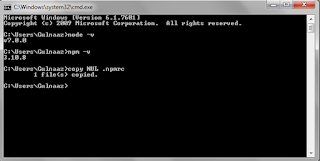
- Create file with name ‘.npmrc’ in your user’s home directory. This will help to bypass npm permission related issues. In windows you will not be able to create file with name ‘.npmrc’ from user interface. You can use following way to create file in windows,
-
- To create ‘.npmrc’ file open command prompt
- go to the user’s home directory (ex. ‘C:\Users\Gulnaaz’)
- now type following command to create file,
copy NUL .npmrc
- Open the file and add the following contents to it
- For Windows
prefix=C:\Users\{username}\.npm-packages
NPM_PACKAGES=C:\Users\{username}\.npm-packages
NODE_PATH=%NODE_PATH%:%NPM_PACKAGES%\node_module - For Linux
prefix= /Users/{username}/.npm-packages
NPM_PACKAGES= /Users/{username}/.npm-packages
NODE_PATH=${NODE_PATH}:${NPM_PACKAGES}/lib/node_modules
- For Windows
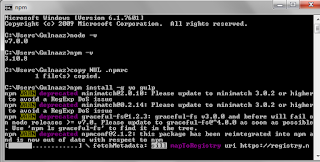
- Now Yeoman and gulp to be installed.
- Yeoman is scaffolding tool and gulp is streaming build system(can assume like ant or maven)
- command to install yo plugin : npm install -g yo gulp
- Install liferay theme generator using command : npm install -g generator-liferay-theme
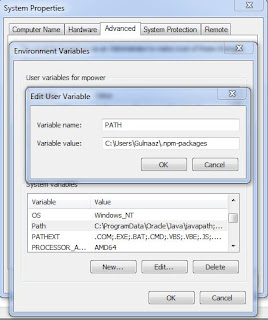
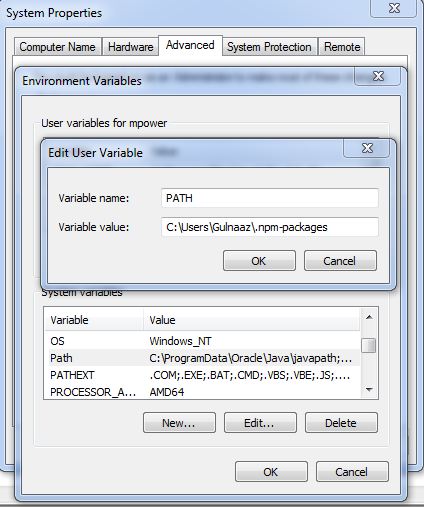
- yo, gulp packages are downloaded to /User/{user-home}/.npm-packages and set this .npm-packages path to Windows PATH variable.

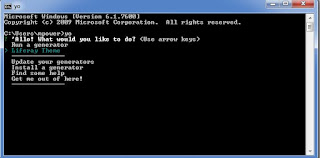
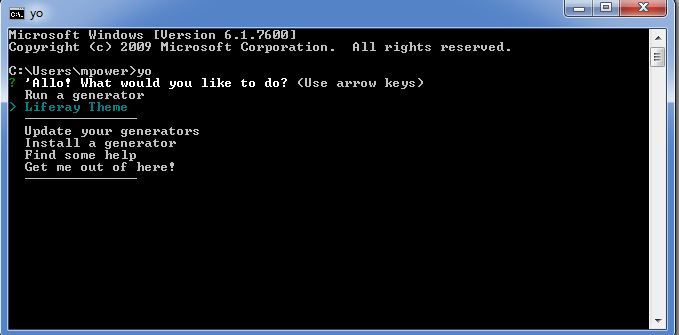
- Verify yo command in command prompt, the below screen will be displayed
Before we build our theme, we need to install Sass, as liferay7 supports Sass in theme.
There are 2 options for using Sass :
- Node Sass
- Ruby Sass
By default, theme generator creates theme projects to use node-sass but we still have option to reconfigure it to use Ruby based Sass and Compass. This is because Node Sass has dependencies.
To make Node Sass work we need to install node-gyp. Node-gyp requires python and Visual studio installed on machine. So I am going with Ruby Sass here.
If you want to go with Node Sass then you can follow this link Install node-gyp
Ruby Installation :
- Download & Install Ruby from here http://rubyinstaller.org/downloads
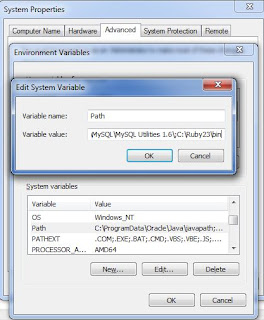
- Add Ruby bin folder path to windows path variable, so that gem can be accessed in command prompt.
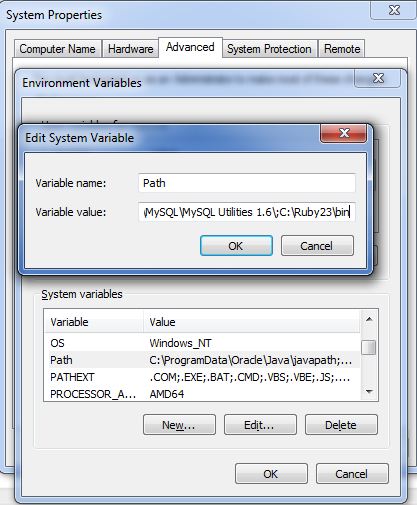
-
- gem sources -r http://rubygems.org
- gem sources -a http://rubygems.org
- gem install sass compass
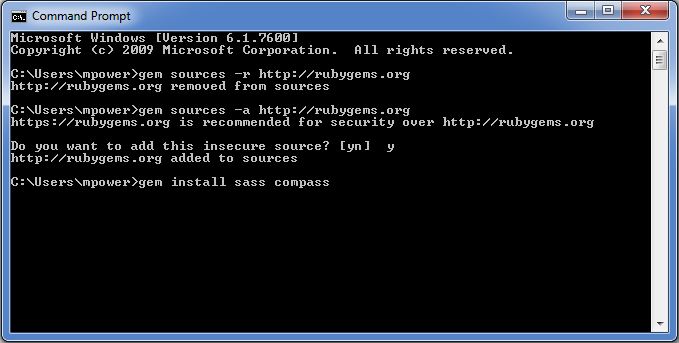
4. Check gem using command
gem -v
5. Now in command prompt navigate to your workspace(ex: workspace/lliferay.plugins.sdk/themes) or wherever you want your generated theme to be and enter
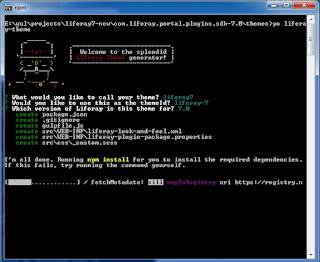
yo liferay-theme
Theme generator would ask for Theme name, Theme id, version enter the values respectively.
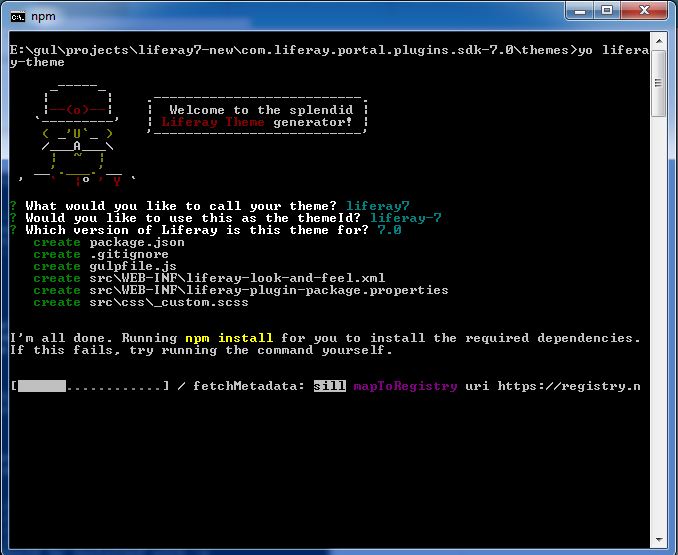
Theme generator will then ask for spp server directory path and url to your development site, give the appropriate values.
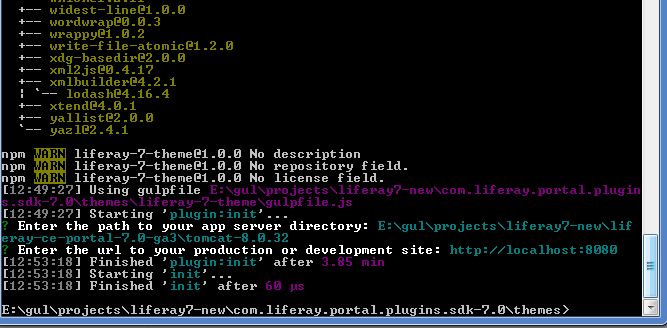
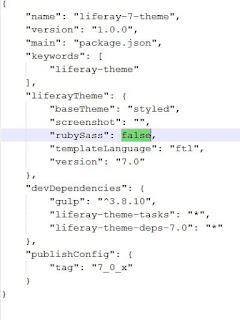
6. Theme is created, but not yet complete, Node js uses Node Sass by default, we have to change this to use Ruby Sass and Compass. To do this
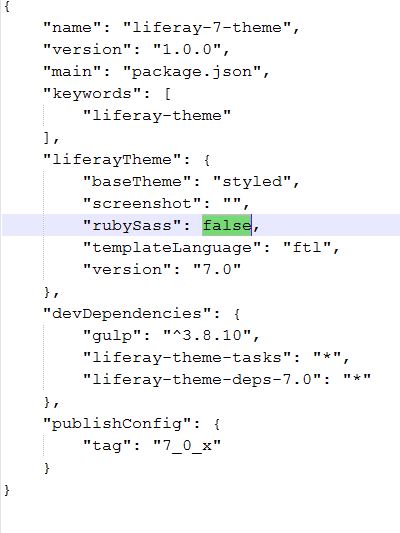
- We need to edit package.json file inside your created theme(liferay-7-theme) folder, here
- set Ruby Sass to true
package.json file
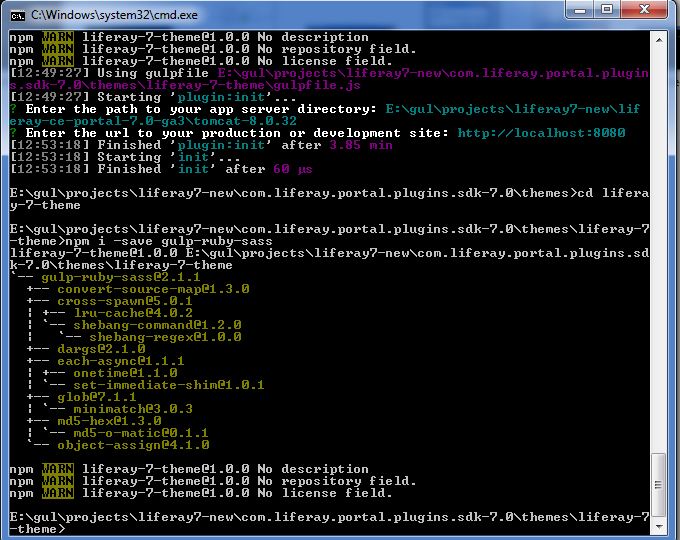
7. Now in command propmt go to theme directory(cd liferay-7-theme) and run the below command:
npm i -save gulp-ruby-sass
8. Run gulp command to create theme structure :
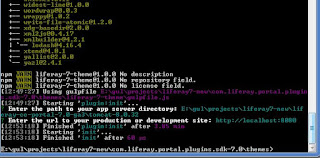
gulp build
Check if there is any error like below error : cannot load compass
This error is because when you tell Ruby to get Compass and SASS via " gem install sass compass", it gets both of them, as it should. But, the version of Compass used requires an older version, which is downloaded by Compass itself. So, you end up with two versions of SASS and the newer version seems to be used in the gulp build, so the compilation of the SCSS into CSS does not happen.
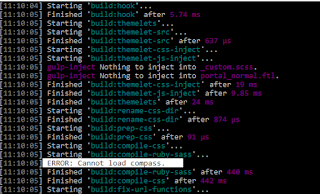
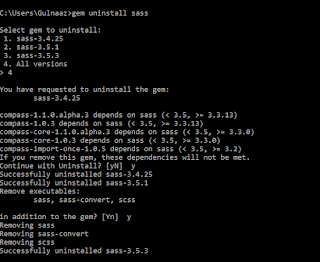
If you find the above error then uninstall the SASS using command : gem uninstall sass
and follow the unisnstallation steps. (Refer below attachment)
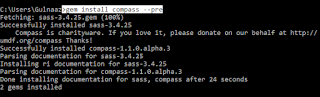
Once it gets uninstalled then reinstall it now using the command : gem install compass --pre
It installs compass, and compass inturn installs SASS as well.
After this try to build using gulp build command , it gets build without any error.
Check if there is any error like below error : cannot load compass
This error is because when you tell Ruby to get Compass and SASS via " gem install sass compass", it gets both of them, as it should. But, the version of Compass used requires an older version, which is downloaded by Compass itself. So, you end up with two versions of SASS and the newer version seems to be used in the gulp build, so the compilation of the SCSS into CSS does not happen.
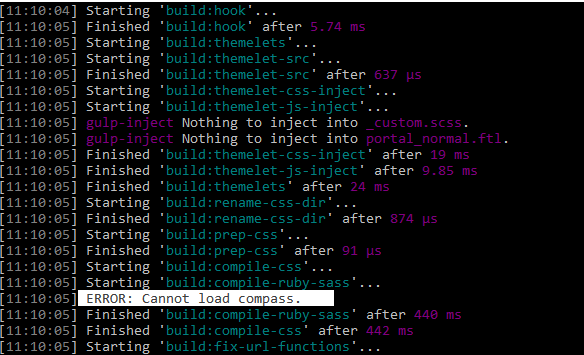
If you find the above error then uninstall the SASS using command : gem uninstall sass
and follow the unisnstallation steps. (Refer below attachment)
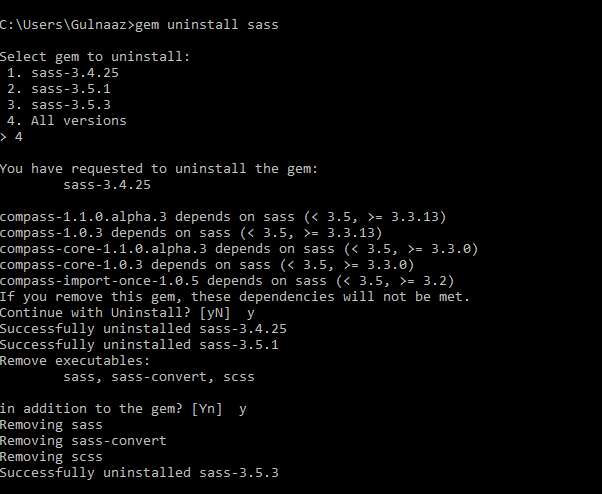
Once it gets uninstalled then reinstall it now using the command : gem install compass --pre
It installs compass, and compass inturn installs SASS as well.
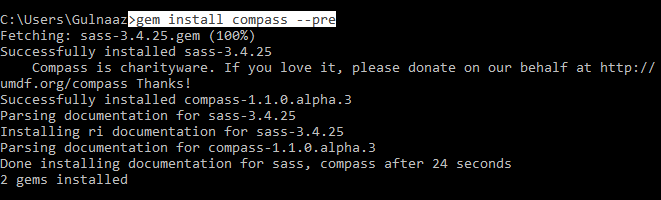
After this try to build using gulp build command , it gets build without any error.
9. Theme structure is now created. Plugin SDK uses _diffs folder whereas theme generator development uses src folder. Inorder to make changes to theme, copy the files from build to src directory.
10. Deploy the theme, run command :
gulp deploy
If you get the following error when the theme is getting deployed.
If you get the following error when the theme is getting deployed.

11. To resolve this go to \liferay-7-theme\node_modules\liferay-frontend-theme-unstyled\css\aui\lexicon\lexicon-base\_nameplates.scss and comment the below lines and save it.

12. Now deploy the theme once again, run command :
gulp deploy
13. Theme gets deployed successfully with no errors.
Related Assets...
Keine Ergebnisse gefunden
More Blog Entries...
Daniel Carrillo Broeder
Oktober 21, 2026
Maurice Sepe
Oktober 20, 2026

Yasuyuki Takeo
Oktober 10, 2026
Community
Company
Feedback