Blogs
Keeping Service Builder code generation aligned with your Liferay DXP target platform.

David H Nebinger
Why This Matters
When you update Blade CLI and create a new Liferay Workspace, the generated workspace normally uses the latest Liferay Workspace Gradle plugin. That plugin selects versions for a number of supporting build tools, including the Service Builder plugin.
For new projects targeting the latest Liferay release, this is usually what you want.
The detail worth paying attention to is that Service Builder generates Java code against the service APIs and conventions of a specific Liferay release line. As Liferay evolves from one quarterly release to another, such as from 2026.Q1 to 2026.Q2, the service tier can change.
The latest Service Builder plugin knows how to generate code for the latest platform version, but that does not always mean it is the right choice for an older target platform.
For example, if your workspace is targeting 2024.Q1, using the newest Service Builder plugin may generate service code that does not line up with the APIs available in that Liferay version.
The important point is simple:
Your Service Builder plugin version should match the Liferay DXP version you are targeting in your workspace.
The Compatibility Matrix
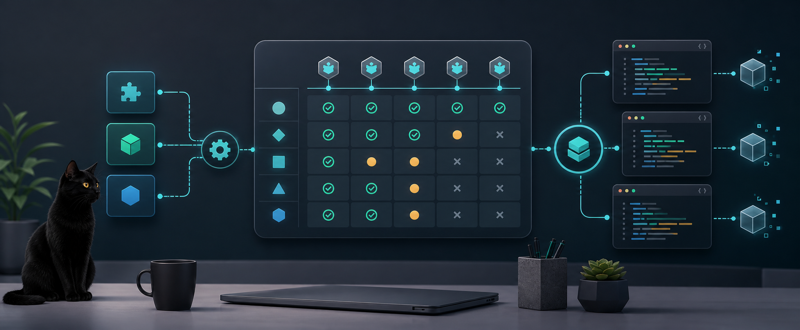
The Developer Experience team at Liferay has put together the following compatibility chart. Use it to select the Service Builder plugin version that corresponds to the Liferay quarterly release configured in your workspace.
| Liferay Quarterly Version | Service Builder Version |
|---|---|
2023.Q3 |
1.0.463 |
2023.Q4 |
1.0.470 |
2024.Q1 |
1.0.478 |
2024.Q2 |
1.0.485 |
2024.Q3 |
1.0.488 |
2024.Q4 |
1.0.490 |
2025.Q1 |
1.0.496 |
2025.Q2 |
1.0.503 |
2025.Q3 |
1.0.510 |
2025.Q4 |
1.0.513 |
2026.Q1 |
1.0.514 |
2026.Q2 |
1.0.532 |
The Service Builder version listed for a quarterly release applies to the patch releases within that quarterly release line.
How To Choose The Right Version
Start with the Liferay version your workspace is targeting.
In a Liferay Workspace, this is typically configured in gradle.properties using the liferay.workspace.product property:
liferay.workspace.product=dxp-2024.q1.10-ltsThe quarterly release portion of that value is the part you need to match against the table.
| Workspace Target Platform | Quarterly Release | Service Builder Version |
|---|---|---|
dxp-2024.q1.10-lts |
2024.Q1 |
1.0.478 |
dxp-2026.q1.8-lts |
2026.Q1 |
1.0.514 |
dxp-2026.q2.0 |
2026.Q2 |
1.0.532 |
Once you know the matching Service Builder version, pin it in the same gradle.properties file:
com.liferay.portal.tools.service.builder.version=1.0.478So a workspace targeting 2024.Q1 might include:
liferay.workspace.product=dxp-2024.q1.10-lts
com.liferay.portal.tools.service.builder.version=1.0.478
After changing the property, rebuild your Service Builder modules as usual:
blade gw buildService
blade gw jar
Or, if you prefer compiling directly:
blade gw buildService
blade gw compileJavabuildService task does not see a change in plugin version as a reason to regenerate a class, only a change to service.xml or. one of the impl classes will do that, and only targeted to those classes that need to be updated as a result of the change. Purging all of the previously generated classes will ensure that SB generates all of the right classes for your version of Liferay DXP.When To Recheck The Matrix
You should recheck this matrix whenever you change your workspace target platform.
For example, if you move from:
liferay.workspace.product=dxp-2024.q1.10-ltsto:
liferay.workspace.product=dxp-2026.q2.0then you should also update:
com.liferay.portal.tools.service.builder.version=1.0.532The target platform and Service Builder version should move together. Treat them as related build configuration, not as independent settings.
Practical Workflow
- Set or update
liferay.workspace.product. - Find the matching quarterly release in the compatibility matrix.
- Pin
com.liferay.portal.tools.service.builder.versionto the matching version. - Run
buildService. - Compile the module.
- Commit both the generated service code and the workspace configuration change together.
That last point matters. If generated Service Builder code changes because the plugin version changed, future maintainers need to see the configuration change that explains why the generated code changed.
Looking Ahead
The Liferay Dev Tools team is working on ways to make this selection automatic in the future. A future version of Blade CLI, the Liferay Workspace plugin, or both may be able to select the appropriate Service Builder version based on the configured target platform.
Until then, this matrix gives you a practical way to avoid generating service code that does not align with your Liferay DXP version.
Related Assets...
More Blog Entries...