Blogs

James Falkner
 Recently I came across a forum post asking about deploying Liferay on Amazon's Elastic Beanstalk. Elastic Beanstalk (EB) is basically a managed Amazon EC2 instance running Linux and a pre-installed Tomcat. You can install (web) apps into that container, and with clever configuration (and your credit card information) it will automatically scale horizontally and vertically as usage demands rise or fall. Pretty sweet right? This is a part of being in "The Cloud". Since it runs Tomcat, it shouldn't be too hard to get Liferay running in this environment, should it? Turns out, it's actually not that hard.
For this example, I used a stock Liferay configuration, using embedded HSQLDB. Clever folks can configure this to use Amazon's RDS service.
For the impatient/advanced
Here's a quick rundown of what you need to do:
- On your local system, create custom Liferay WAR file which includes missing dependencies and a custom
portal-ext.propertiesfile - On EB, Create new EB Application, and upload your custom WAR file
- Configure JVM instance for higher Java memory settings
- (optional) Configure EC2 instance to use SSH
- Restart
Details:
First, as of this date, Elastic Beanstalk runs Tomcat 6.0.32. Pretty close to the 6.0.29 that Liferay 6.0.6 ships with. However, the version that Liferay Bundles ship with are slightly modified to configure things like default network ports, classloader behavior, filesystem paths, dependent libraries, and other various things. So, to successfully deploy to EB, we will need to build a custom Liferay WAR file that includes the things that the EB Tomcat is missing, and configure ${liferay.home}. So, to create this custom app:
- Download and un-jar the stock Liferay WAR file into some temporary directory (for example, download the
.warfile to/tmpand extract it to/tmp/lr-eb-war). Save the original.war, you'll be updating it shortly. - Download and un-jar the stock Liferay Tomcat Bundle into some other place (for example
/tmp/lr-606-bundle). You'll be borrowing libraries from it shortly. - Copy all of the global jar files from the Liferay Tomcat Bundle in lib/ext to your custom Liferay WAR file directory
-
cp /tmp/lr-606-bundle/liferay-portal-6.0.6/tomcat-6.0.29/lib/ext/*.jar /tmp/lr-eb-war/WEB-INF/lib
-
- Create a text file
/tmp/lr-eb-war/WEB-INF/classes/portal-ext.propertieswhich includes a single line:liferay.home=/tmp/liferay-home-eb - Add these files back into the stock Liferay WAR file using the jar utility (note these instructions will work on unix/Linux/Mac OS X Windows users can use a utility like 7-Zip or InfoZip or something else to accomplish the same thing).
-
cd /tmp/lr-eb-war -
jar uvf ../liferay-portal-6.0.6-20110225.war WEB-INF/classes/portal-ext.properties WEB-INF/lib/*.jar
-
Once this is done, you're ready to create an EB account and log in. Go here and click "Begin Using AWS Elastic Beanstalk" to create a new account. After creating an account, giving Amazon your credit card info, confirming your account via telephone, go to the main AWS Console screen.
Create a new EB Application, selecting to upload a custom file, and select to create a new deployment environment. Make sure to pick the t1.micro configuration, otherwise you'll probably blow right past the "free" limits and start accruing charges on your credit card. Better to save your money for the Liferay EE license and beefier EC2 instance later in production ;-)

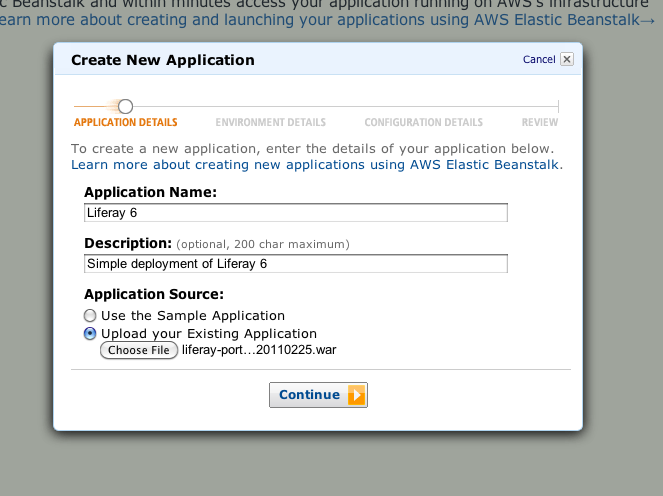


After clicking "Finish" it will take a while to upload the (~130MB) custom WAR file. You'll stare at a spinner for a while, with no indication of progress. Once you get the "Your Application has successfully been created" message you'll be ready to proceed. You'll be placed at the AWS (Amazon Web Services) Console. The only two tabs you'll use here is the "Elastic Beanstalk" tab (to configure Tomcat and applications) and the "EC2" tab to configure the virtual machines on which Tomcat runs.
Memory Configuration
Once the upload is complete, Amazon will create a virtual machine running Linux, put a load balancer in front, create a DNS record, deploy a bunch of other junk (such as an Auto Scaling service to add more machines when needed), launch the virtual machine and Tomcat, deploying your custom Liferay web app, but it'll be broken because it's not configured correctly and probably ran out of memory. Ignore any errors in any log file output you may be able to see. Once you get Liferay up and running you can play with all this stuff to your heart's content. For now, let's go configure things so that Liferay works.
You'll have to wait for the environment to be fully "up" (might take 5-10 minutes) before you can start tweaking configuration. Once the spinner is done spinning and everything seems steady-state, click on the "Edit Configuration" link:

If things aren't ready to be configured, it'll tell you. Here, you can see all the wonderful things you can configure, but the only thing you need to do here is on the Container tab. Set the memory settings as shown below:
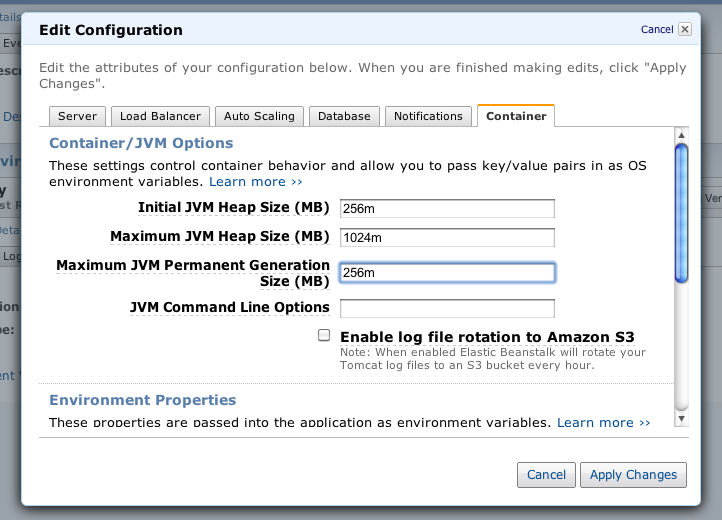
Click "Apply Changes".
Your First Liferay On The Cloud
If all goes well, Liferay should eventually come up (After 5-10 minutes). On the main AWS Console, if the status turns to "Green" (you can also watch the "Events" tab), then you're good to go! Click on the "Overview" tab and click on "View Running Version" to see and log into your new Liferay Instance On The Cloud. Welcome to Web five-dot-oh :) (You can also get the hostname from the Environment Details screen, and it's the same hostname you initially configured when setting up things at the beginning).


Troubleshooting
If things don't go so well, and you want to do traditional administration from the command line (and really, who doesn't?), you need to log into your running OS using ssh. To do that, you need to create a keypair, download the private key, apply the key pair to the configuration for your EC2 instance, and open up port 22 (the ssh port) on the EC2 instance, and finally use your favorite ssh utility to ssh (or scp, or sftp, or...) into the virtual machine.
SSH: Creating a keypair
Here is where you use the "EC2" tab at the very top of your AWS console. Click on it, and click "Key Pairs" on the left. It'll tell you you don't have any. Click "Create Key Pair" to create a new one.

Give it any name, and click create. It'll automatically download a .pem file that contains the "private" side of this key pair. This probably violates several PKI best practices, but what are you gonna do? Store this file somewhere convenient, you'll be using it in a bit when ssh'ing to your running virtual machine. You'll also need to chmod 400 the file if on Unix/Linux/Mac OS X. Otherwise ssh will refuse to use it, citing security concerns. Thanks ssh.

SSH: Apply the Key Pair to your EC2 instance
You need to associate the newly-created key pair to your machine (this effectively configures SSH on the linux box). To do this, go back to the "Elastic Beanstalk" tab at the very top of the screen. Under "Environment Details" click on "Edit Configuration". On the "Server" tab of this dialog, enter the name of your newly created keypair in the "Existing Key Pair" field. Note there is no auto-completion or selection here. You have to type in the full name (bah!!). Click "Apply Changes" and agree to the little warning that comes up:

SSH: Configure the Security Group
When you first created your Elastic Beanstalk application, Amazon automatically allocated a virtual machine to you, and applied a default Security Group configuration to it. The Security Group, among other things, defines a set of networking rules that allow or disallow network traffic to and from the EC2 instance running Tomcat/Liferay. You need to add ssh as one of the "allowed" applications for which network traffic is permitted. Go back to the "EC2" tab at the very top of your screen, and click on "Security Groups" on the left, then click on the "elasticbeanstalk-default" group. At the bottom, click on the "Inbound" tab, and create a new rule, selecting SSH from the "Create a new rule" dropdown:

Then click "Apply Rule Change" at the bottom of the "Inbound" tab. This opens up port 22 to your EC2 instance so you can ssh to your running Linux instance.
SSH: Using The Command Line
Now that port 22 is open, you can ssh. Again, these instructions work on unix/Linux/Mac OS X. Windows users can use things like PuTTY to ssh to the machine. To ssh to your instance, you need to know the DNS name of the virtual machine (Amazon dynamically allocates these so there's no way to guess). To figure this out, click on the "Instances" tab on the left. There may be multiple instances listed here. You want the one that has the associated key pair mentioned in the "Key Pair Name" column. Right-click on this, and select "Connect". It'll show you the appropriate command line (you'll need to change the path to the saved .pem private key file from earlier). It also shows you the DNS hostname of your running instance:

Note that the sample cut-and-pastable command line they give uses the root user. Amazon has since updated their policy to require you to ssh as the ec2-user user. You'll get error if you attempt to ssh as the root user. So don't. Here's the example, correct command line I use:

Once in, it's like any other Linux shell. You can see the Tomcat process and other interesting info using ps and other utiities:

Notice Liferay is already deployed into Tomcat, located at /usr/share/tomcat6/webapps/ROOT. You can edit anything under here to tweak Liferay. However, you can't alter the Tomcat configuration directly, as the application files and execution runtime is owned by root, and you are merely ec2-user. You can look in /tmp to see the Liferay Home directory you specified earlier in your portal-ext.properties.
That's it for now, hope you find it useful. If you expand on this (e.g. configure RDS, or do some other cool thing), leave comments below! Some improvements could be:
- Configuring the JVM so that you don't have to inject all of the Liferay dependency JARs into the main Liferay web app. This would allow future deployed Liferay extensions to use the same libraries and avoid classloader issues.
- Configure Liferay IDE to be able to deploy to EB instances automatically given your login info
- Configure the Liferay Home directory to not be in
/tmp.
Have fun!
Related Assets...
More Blog Entries...