
Blogs

Anna Rimmer
Introduction
This is short guide how you can integrate Open edX with Valamis & Liferay using Experience API. This article is in two parts. First part describes setting up Open edX. If you have already instance running, you can skip to the article part 2.
Business case
Your organization might be looking into using edX or any other course or learning management systems. Many large organizations can have multiple systems for learning or course activities. Migration and integration projects are difficult at best. It is important to be able to control the learning data for reporting, analytics and other purposes. This is why Experience API standard was defined and Learning Record Store was created.
With this integration, you can connect external course environment to your Liferay platform for storing the learning activities to provide single source for learning analytics and gamification. You can use this approach to connect multiple cloud based or third party learning solutions to Valamis and Liferay. For example, you are able to connect learning performance metrics to your organization competencies, HR metrics and social intranet platform.
About Open edX
The Open edX platform is an open source, course management system (CMS) that is developed by edX. The Open edX platform is used all over the world to host Massive Open Online Courses (MOOCs) as well as smaller classes and training modules.
About Valamis
Valamis is an open source Learning Experience Platform (LXP), which not only enables formal learning but also social and informal learning. Valamis has strong emphasis on learning analytics, which are operated via Experience API (xAPI) and Learning Record Store (LRS). The combination of the Experience API and Valamis gives organizations a powerful tool to receive accurate analytics of learning processes of individuals as well as of groups of learners.
Installing Open edX
You should note that the Official installation guide for Open edX using the Configuration repository only supports Ubuntu 12.04, but you can try install it on freshly installed Ubuntu 14.04 server with this guide. If you do, do not use default one-step install scripts, because it will check your platform version.
When I installed Open edX for the first time, I faced some issues. I was able to work around them with following steps:
For install Open edX on Ubuntu 14.04 server, do the next steps:
1. Update and upgrade apt-packages
sudo apt-get update
sudo apt-get upgrade
2. Install some additional packages
sudo apt-get install -y build-essential software-properties-common python-software-properties curl git-core libxml2-dev libxslt1-dev python-pip python-apt python-dev  libxmlsec1-dev swig

sudo pip install --upgrade pip

sudo pip install --upgrade virtualenv
3. Clone the configuration repository
cd /var/tmp

git clone -b release https://github.com/edx/configuration
You should allow password-based SSH authentication. Edit file configuration/playbooks/roles/common/defaults/main.yml and set COMMON_SSH_PASSWORD_AUTH to "yes"
4. Install the ansible requirements
cd /var/tmp/configuration

sudo pip install -r requirements.txt
5. Run the edx_sandbox.yml playbook in the configuration/playbooks directory
cd /var/tmp/configuration/playbooks && sudo ansible-playbook -c local ./edx_sandbox.yml -i "localhost,"
6. Run Open edX
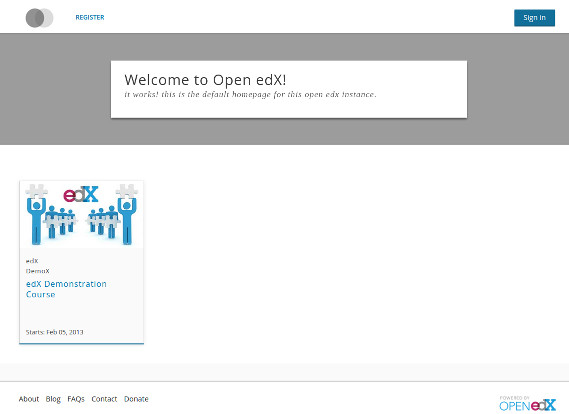
Go to http://localhost and try Demonstration course
Troubleshooting
1. If you are got a message like this
- update-alternatives: error: no alternatives for libblas.so.3gf
then you have to modify the file /var/tmp/configuration/playbooks/roles/edxapp/tasks/python_sandbox_env.yml as follows:
Replace this
command: update-alternatives --set libblas.so.3gf /usr/lib/libblas/libblas.so.3gf
with
command: update-alternatives --set libblas.so.3 /usr/lib/libblas/libblas.so.3
and then replace this line
command: update-alternatives --set liblapack.so.3gf /usr/lib/lapack/liblapack.so.3gf
with the following
command: update-alternatives --set liblapack.so.3 /usr/lib/lapack/liblapack.so.3
msg: Failed to validate the SSL certificate for download.elasticsearch.org:443. Use validate_certs=no or make sure your managed systems have a valid CA certificate installed. Paths checked for this platform: /etc/ssl/certs, /etc/pki/ca-trust/extracted/pem, /etc/pki/tls/certs, /usr/share/ca-certificates/cacert.org /etc/ansible
Related Assets...
More Blog Entries...


