This article outlines the high-level steps for creating a custom image for the PaaS web server (nginx) service.
Daniel Carrillo Broeder
Junho 04, 2025
Leitura de 2 minutos
The purpose of this post is to extend the image
provided by Liferay PaaS to include a custom module — ngx_brotli,
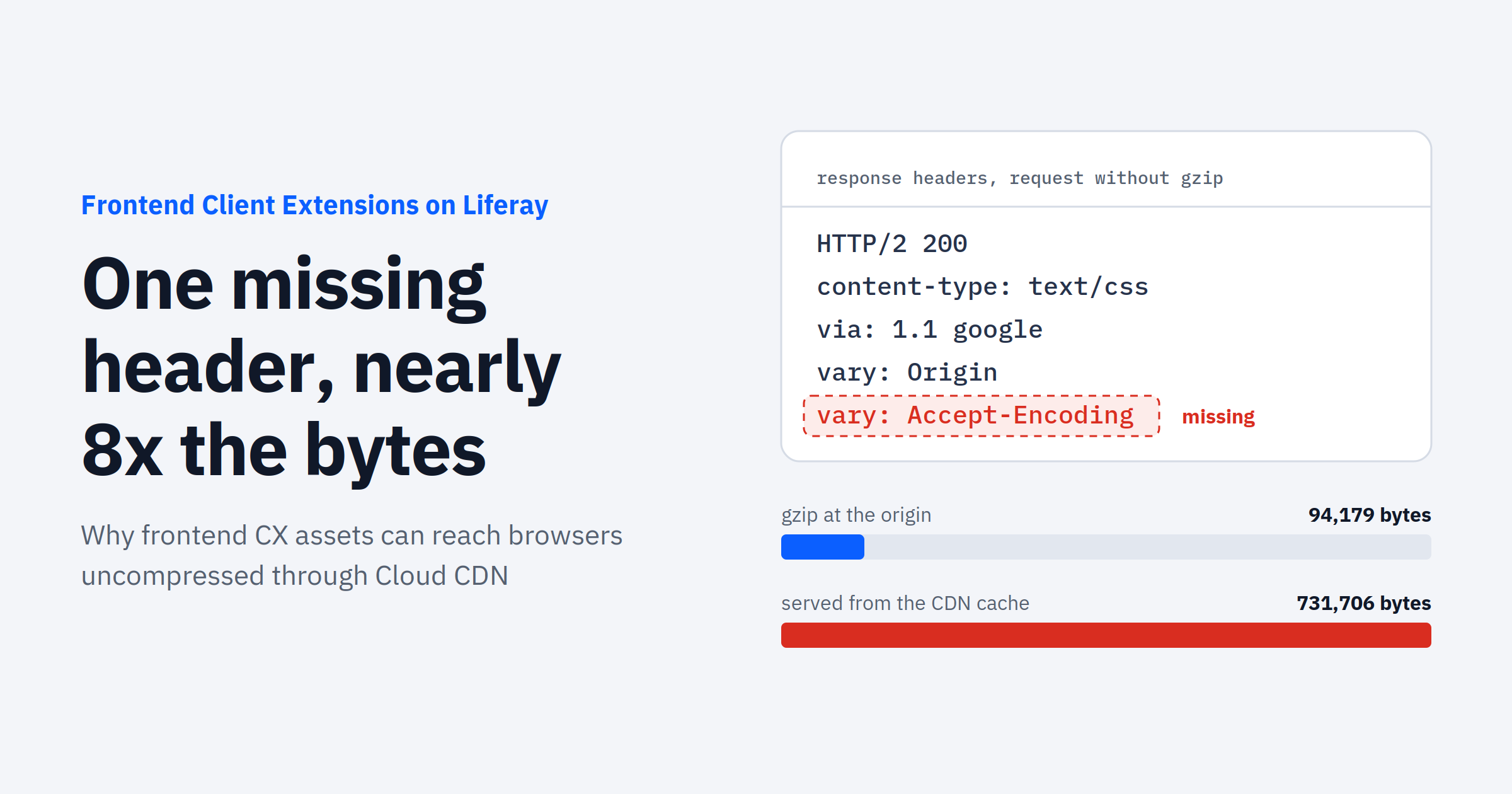
a widely-used compression module that improves web performance
by reducing response sizes.
While Liferay PaaS offers a robust and
opinionated platform for deploying DXP-based solutions, it also
introduces constraints that can make low-level customizations like
this more complex.
Extending any core image is not recommended and
Liferay does not provide any kind of support for customized service
images. Please refer to the Liferay Cloud Support Coverage and
Policies on Custom
Images and Services for detailed information.
Steps to override the web server (nginx) image
To achieve the proposed goal, we will try
to create a custom Docker image based on Liferay's image. Creating
an image from scratch is outside the scope.
You will need to access to your webserver
folder and add a new Dockerfile in the following path: <workspace-folder>/webserver/Dockerfile to override the
webserver image.
Dockerfile
from liferaycloud/nginx:1.24.0-6.1.6

COPY configs /docker-init.d/configs
The directive COPY configs
/docker-init.d/configs is required to include any custom
configurations in the image; otherwise, they will be ignored. However,
this step might not be supported in
future liferaycloud/nginx releases and should be reviewed accordingly.
Build and setup the custom nginx module
Now we are going to install and enable
ngx_brotli which allows Brotli compression support for modern browsers
- caniuse.com/brotli.
Since we are extending an already
compiled Nginx image from Liferay, we will need to compile the
module externally. This involves manually
downloading Nginx and building the ngx_brotli module.
The goal is to add the custom module in
the Dockerfile (like the default
image), so make sure you use a similar environment and the exact
same Nginx version to generate the
corresponding <_module>.so* files.
After compiling and
generating ngx_http_brotli_filter_module.so and ngx_http_brotli_static_module.so,
create a new folder named webserver/custom_modules and
copy both files there.
Then, modify the Dockerfile to include the
new modules
Note: The
default nginx.conf can be reviewed by starting a local container:
# Inspect container
docker run -it -u root --entrypoint /bin/bash --name test liferaycloud/nginx:1.24.0-6.1.6
# Cleanup
docker rm test
docker rmi liferaycloud/nginx:1.24.0-6.1.6
Deploy and test
The new webserver service is now ready for
testing and deployment in the intended environment.
cd webserver/
lcp deploy --project= --environment=
After successful deployment, inspect the
HTML using any modern browser (e.g., Chrome) and verify that
the Content-Encoding:br header is present.
End notes
Although I enjoyed working on this simple
proof of concept, extending a PaaS base image should not be the
default approach:
Avoid overriding by default and first verify if no other
options are available. Liferay support can evaluate your request for
consideration in future releases or suggest alternative
solutions.
The evolution of Liferay PaaS images is
unpredictable. This solution will require ongoing maintenance and
might not be compatible with future releases.
Customizing
or overriding service images may result in loss of support.
Usamos cookies para fornecer conteúdo personalizado, analisar tendências, administrar o site, monitorar movimentações de usuários no site e coletar informações demográficas sobre nossa base de usuários como um todo. Aceite todos os cookies para a melhor experiência possível em nosso site ou gerencie suas preferências.
Visite nossa Política de privacidade