Blogs
Learn how to centralize Liferay DXP logs in Splunk for improved troubleshooting, monitoring, and operational visibility.

David H Nebinger
Many organizations use centralized logging platforms such as Splunk to aggregate logs from applications, infrastructure, containers, and cloud services. Centralized logging makes it easier to troubleshoot issues, identify trends, create alerts, and correlate events across multiple systems.
A common question I hear is:
How do I configure Liferay DXP to send logs directly to Splunk?
In this post I’ll walk through a complete working example using Splunk’s HTTP Event Collector (HEC) and Log4j. The example uses Docker Compose so you can reproduce the setup locally, but the same approach applies to traditional installations and production environments.
Why Use Splunk HEC?
There are several ways to get Liferay logs into Splunk:
- Monitor log files with a Splunk Forwarder
- Forward logs through syslog
- Collect logs from Kubernetes or container platforms
- Send logs directly using the Splunk HTTP Event Collector (HEC)
For this walkthrough we’ll use HEC because it allows Log4j to send events directly to Splunk without requiring an additional agent.
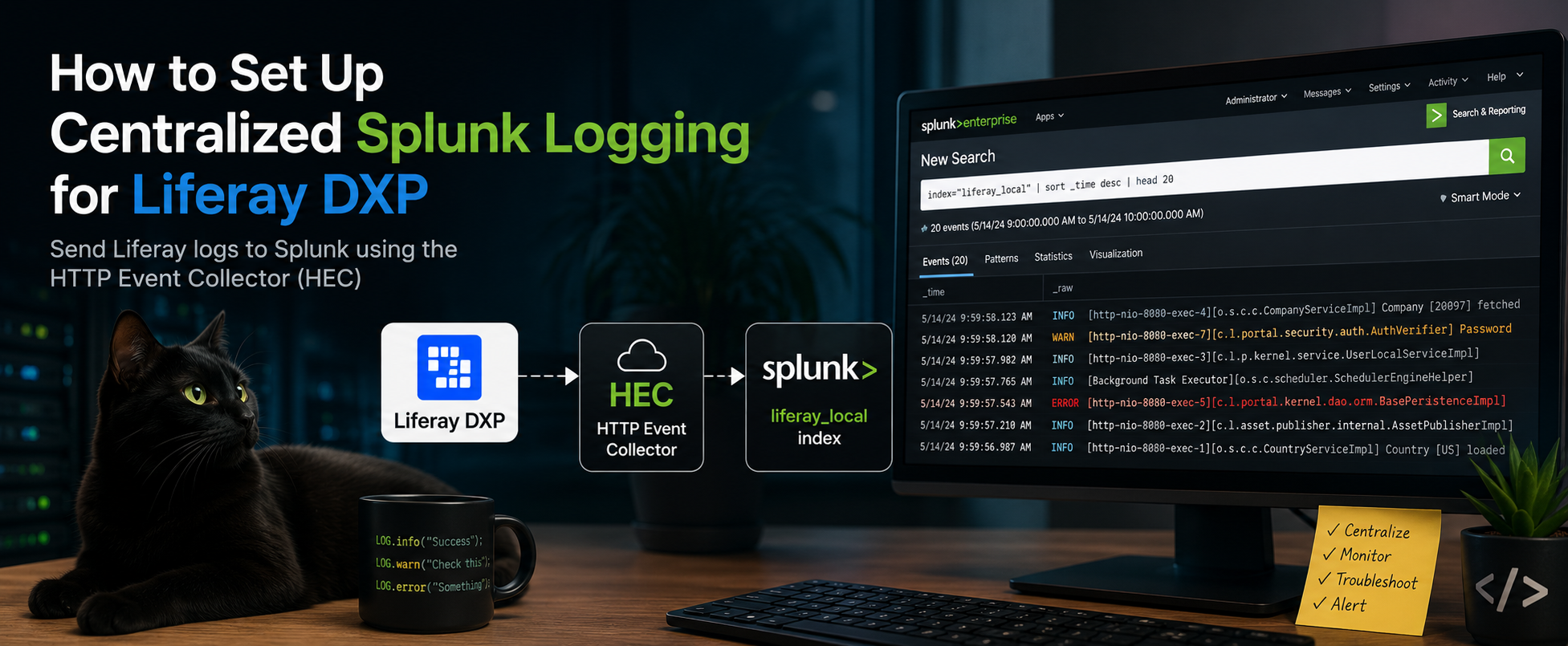
The resulting architecture looks like this:

Preparing the Environment
The accompanying project includes a Docker Compose environment containing:
- Liferay DXP
- Splunk Enterprise
After cloning the project and configuring the environment variables, start the environment:
docker compose up -dAt this point both Splunk and Liferay are running, but Splunk has not yet been configured to receive log events and Liferay fails sending log messages there.
Creating the Splunk HEC Data Input
Log in to Splunk using the credentials defined in the project’s .env file.
Navigate to:
Settings → Data Inputs

Create the new input using the following values:
|
Setting |
Value |
|---|---|
|
Name |
liferay-dxp |
|
Source Name |
liferay-dxp |
|
Sourcetype |
_json |
|
Indexer Acknowledgement |
Disabled |
|
Default Index |
liferay_local |
Disabling Indexer Acknowledgement simplifies the configuration because no channel identifier is required when events are submitted.


Allow access to all indexes or at minimum the liferay_local index.
When the collector is created, Splunk will generate a token.

Copy this token and update the .env file:
SPLUNK_HEC_TOKEN=<your-token>Recreating the Liferay Container
Environment variables are injected when the container is created.
This means:
docker compose restart liferayis not sufficient after changing the .env file.
Instead recreate the container:
docker compose down
docker compose up -d
Alternatively:
docker compose up -d --force-recreate liferayEither approach ensures the new token is available inside the container.
Configuring Log4j
The project includes a Log4j appender configured to use the Splunk Java Logging library.
The appender uses the Splunk HEC endpoint and reads the token from the environment.
A simplified configuration looks similar to:
<Appender
    name="SPLUNK"
    type="SplunkHttp"
    url="https://splunk:8088"
    token="${env:SPLUNK_HEC_TOKEN}"
    index="liferay_local"
    source="liferay-dxp"
    sourcetype="_json"
    batch_size_count="1"
    disableCertificateValidation="true">

    <Layout
        type="PatternLayout"
        pattern="%d %-5p [%t][%c{1}] %m%n"
    />

</Appender>
The appender is then attached to the root logger so all Liferay log events are forwarded to Splunk.
Verifying the Integration
Once Liferay has restarted, open Splunk Search and run:
index="liferay_local"You should immediately begin seeing Liferay startup events.

If everything is working correctly you’ll see startup messages, warnings, informational events, and application logs flowing directly into Splunk.
Troubleshooting
During testing I encountered several issues that are worth calling out.
HTTP vs HTTPS
Splunk HEC is commonly configured for HTTPS.
If HTTPS is enabled, attempts to connect over HTTP will fail.
A quick health check can verify connectivity:
curl -k https://splunk:8088/services/collector/healthA healthy collector returns:
{
  "text": "HEC is healthy",
  "code": 17
}
Indexer Acknowledgement
If Indexer Acknowledgement is enabled, Splunk requires a channel identifier on every request.
Without a channel identifier, requests will fail with:
{
  "text": "Data channel is missing",
  "code": 10
}
For simple Log4j integrations, disabling Indexer Acknowledgement is usually the easiest option.
Restart vs Recreate
One of the more subtle issues involved Docker environment variables.
Updating the .env file does not automatically update a running container.
If the HEC token changes, the container must be recreated so the new value is injected.
Persistent Splunk Storage
If you’re running Splunk in Docker, make sure the configuration and indexes are stored in persistent volumes.
Otherwise recreating the container will remove:
- Indexes
- HEC tokens
- Users
- Configuration
This can be frustrating when you’re trying to troubleshoot a logging configuration.
Production Considerations
For a production deployment I would typically evaluate several approaches before selecting direct HEC integration.
In many environments a Splunk Universal Forwarder, Kubernetes logging pipeline, or centralized log collection platform may already exist.
Direct HEC integration is attractive because it is straightforward and requires minimal infrastructure, but it does introduce a direct dependency between the application and Splunk.
The right choice depends on your organization’s logging architecture.
Final Thoughts
Centralized logging is one of the easiest ways to improve operational visibility for a Liferay environment.
Using Splunk HEC and a Log4j appender allows Liferay to send events directly into Splunk with relatively little configuration. Once the logs are available centrally, they can be used for troubleshooting, alerting, dashboards, auditing, and long-term analysis alongside the rest of your platform telemetry.
If you’re already using Splunk, adding Liferay to your existing observability strategy is a straightforward next step.
Here's the repo I used for development, testing, and creating the set of instructions and screen prints: https://github.com/dnebing/liferay-splunk-loggging-example.
Related Assets...
More Blog Entries...